Agent Home gives agents one place to understand how they are performing, review feedback, respond to evaluations, and open the related customer conversation for context.
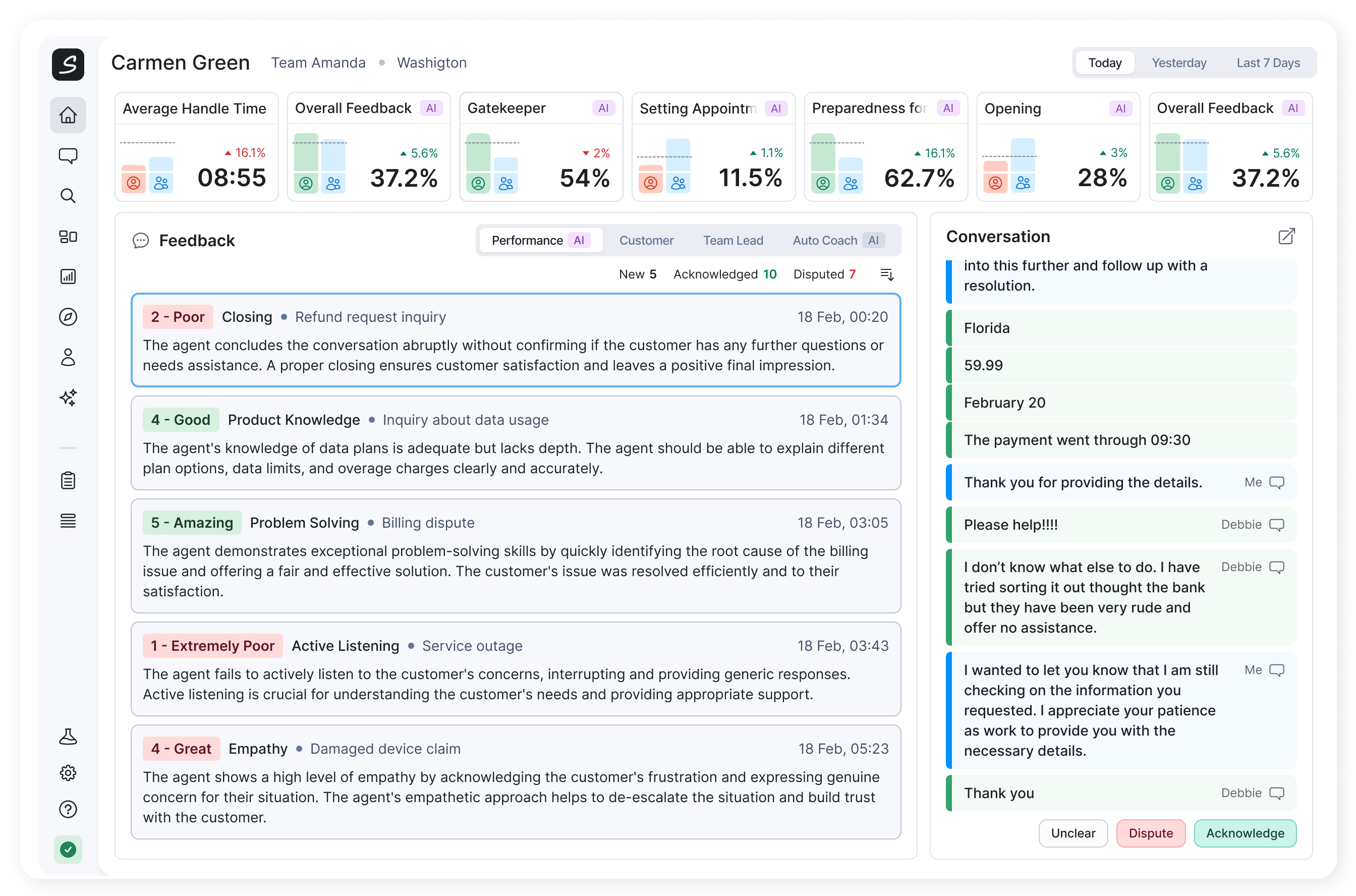
What you can do in Agent Home:
Agent header
See core information about agent, choose a time period, and change how Auto QA scores are displayed (with permission only).
Key Metrics
See current results, trends, targets, and team comparisons.
Feedback and Conversation preview
Review Performance, Customer, Team Lead, and Auto Coach feedback and inspect the related conversation.
Choose an agent and time period
If your access is limited to your own data, Agent Home always shows your data only. Users who have permission (like Team Leads or Supervisors) can switch and view Home of other agents too. The agent name may be accompanied by team, department, and location information when those details are available.
Choose one of these periods:
- Today
- Yesterday
- Last 7 Days
The selected period controls the Key Metrics and the Performance and Customer feedback shown on the page. It is also used when you request new Auto Coaching.
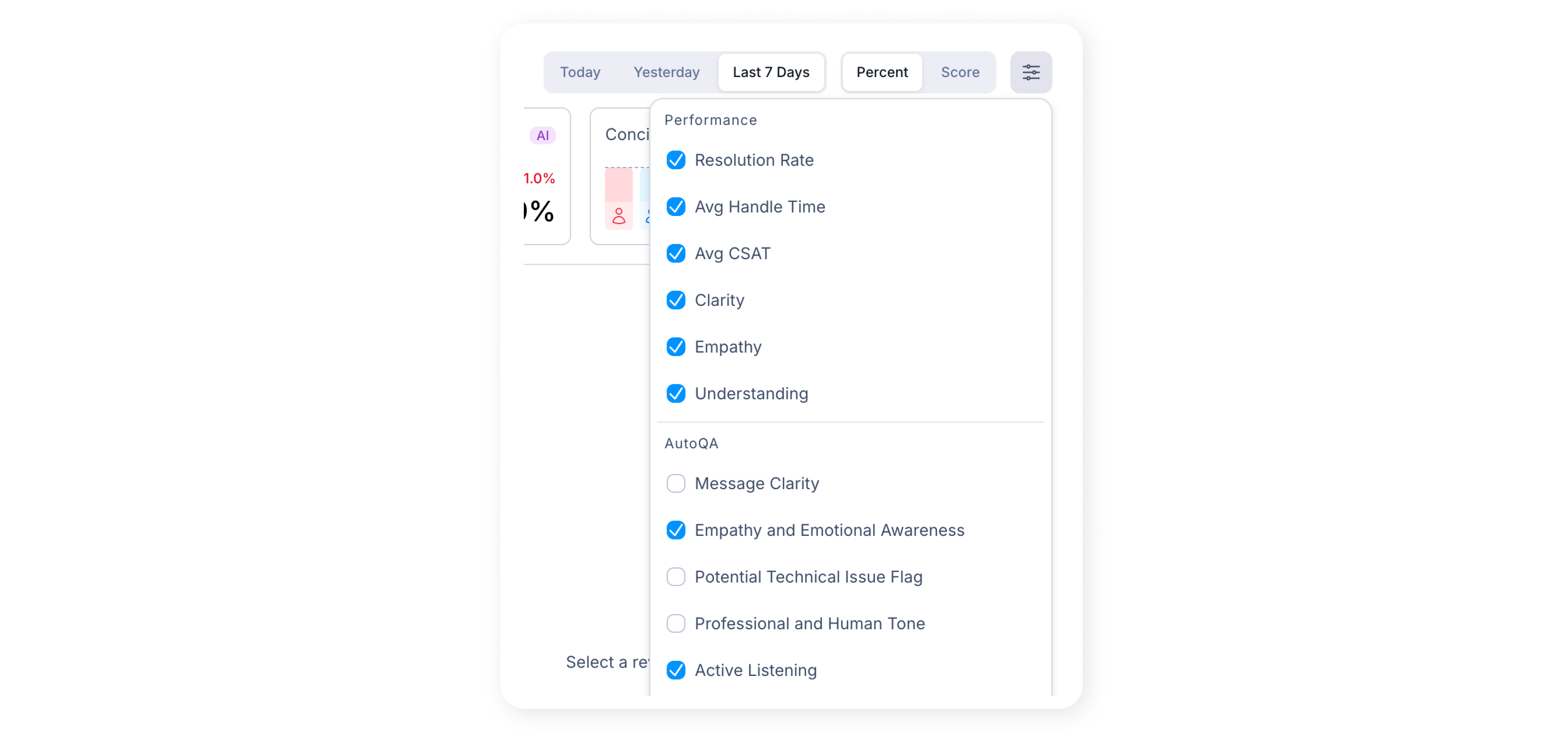
Use Percent or Score to change how Auto QA metrics are presented. Percent shows normalized results, while Score shows the average answer score supported by the review question.
Understand Key Metrics
The Key Metrics strip provides a compact view of the agent's current performance. Depending on account configuration, it can include operational metrics such as:
- Resolution Rate
- Avg Handle Time
- Avg CSAT
- Clarity
- Empathy
- Understanding
- Auto QA questions configured as metrics
Metrics based on AI evaluation are marked with an AI badge.
Each metric card can show:
- the result for the selected period
- the change from the preceding comparable period
- a configured target
- a comparison with the agent's team, when available
The direction of improvement depends on the metric. A higher result is usually better, but a lower value may be better for metrics such as Avg Handle Time.
Agent Home displays up to seven metrics. Required metrics are always included. When more optional metrics are selected than can fit, Agent Home prioritizes available high-performing and low-performing results so the strip remains useful for coaching.
Choose which metrics to follow
Select the metric settings control in the Key Metrics area to choose from the available operational and Auto QA metrics. At least four metrics must remain selected. Your selection is stored in your current browser. Selecting an Auto QA metric also makes feedback for that metric available in the Performance tab.
Work with feedback
The Feedback area separates feedback by source:
- Performance - Auto QA evaluations
- Customer - customer ratings and comments
- Team Lead - coaching completed by a team lead or reviewer
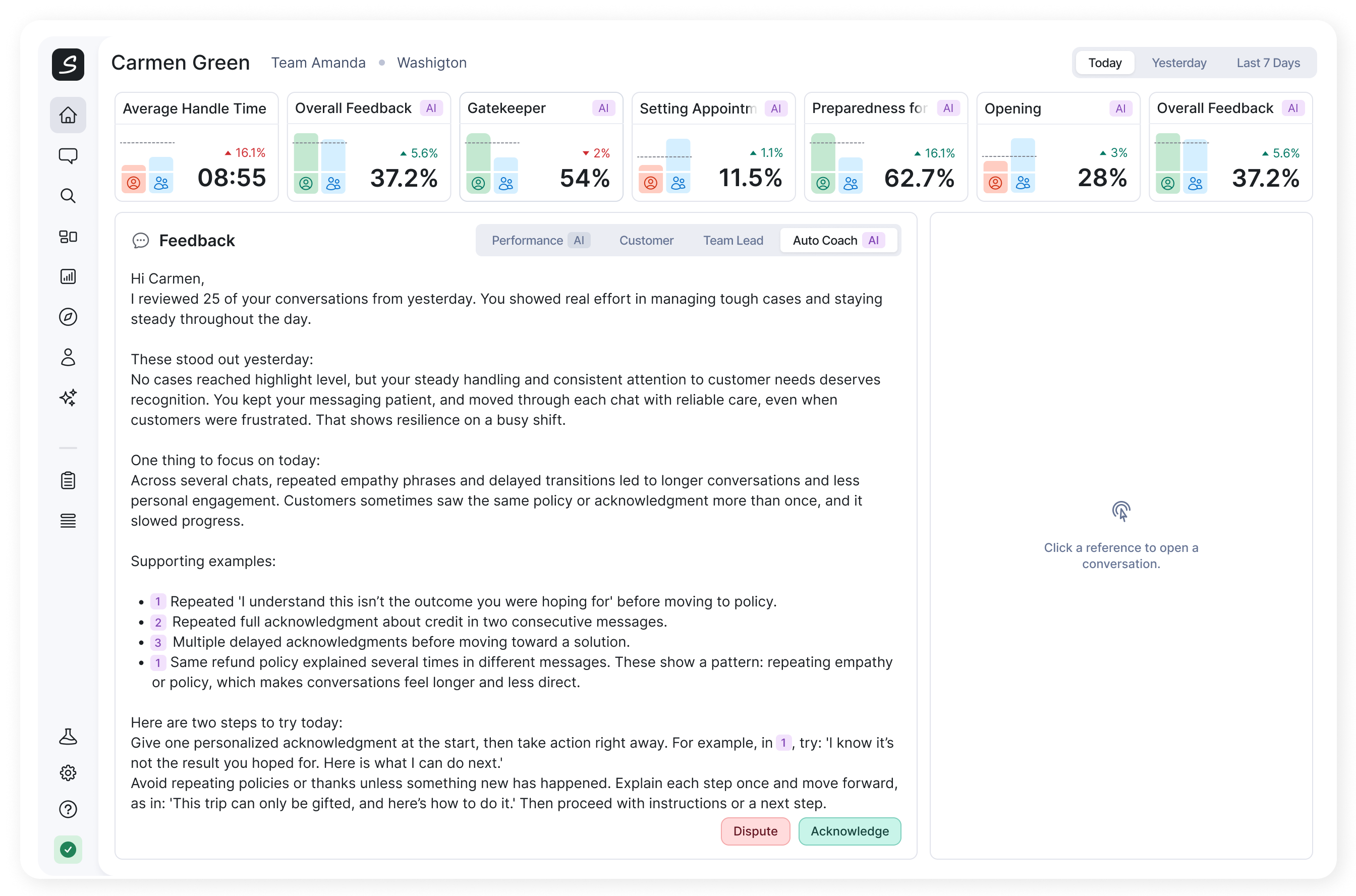
- Auto Coach - AI-generated coaching
Select an item to open its conversation in the preview on the right. The preview keeps the selected review in context and provides an option to open the full Customer Journey in a new tab.
The selected feedback tab controls the content of the preview. When you move to another tab, select an item there to load its context.
Performance feedback
The Performance tab shows a focused sample of Auto QA reviews for the selected period and selected Auto QA metrics. It is designed to surface useful positive and negative examples, not to list every evaluation completed for the agent.
Use the filters to show reviews with these states:
- New - not yet responded to
- Acknowledged - accepted by the agent
- Disputed - challenged by the agent
- Unclear - marked as needing clarification
New is selected by default. At least one filter must remain active.
The counters above the list summarize Acknowledged, Disputed, and Unclear reviews in the current scope, even when one of those states is not currently visible in the list.
Customer feedback
The Customer tab surfaces a focused sample of recent positive and negative customer reviews for the agent. The selected time period determines which of the recent reviews are visible.
Customer feedback uses the same New, Acknowledged, Disputed, and Unclear filters as Performance feedback. Select a review to inspect the related conversation before responding.
When no matching customer feedback is available, Agent Home shows ‘No customer feedback yet’.
Respond to an individual review
Performance and Customer reviews provide these actions:
- Acknowledge
- The review is clear and you accept it.
- Your response is saved and the item becomes Acknowledged.
- Dispute
- You believe the review, score, or interpretation is incorrect.
- You must add a comment explaining the issue before the response is saved.
- Unclear
- You cannot confidently acknowledge or dispute the review without clarification.
- The item is saved as Unclear for follow-up.
After a response is saved, the current preview closes. Use the status filters to return to reviews you have already handled. For more detail, see Acknowledge and Dispute Reviews.
Team Lead coaching
The Team Lead tab shows the latest completed coaching session available for the agent.
Feedback is grouped by review question and answer. Comments can include references to specific conversations. Select a conversation reference to open it in the preview and examine the coaching in its original context.
Choose Acknowledge or Dispute for the coaching session. This response applies to the session as a whole and completes it in Agent Home.
When no completed coaching is available, Agent Home shows ‘No coaching sessions yet’.
Auto Coach
The Auto Coach tab shows the latest active AI-generated coaching session available for the agent.
If no session is available, select Get new coaching to request one. The selected Agent Home period is used to generate the coaching. Availability depends on your account setup and permissions.
Auto Coach feedback is grouped by question and answer. Select a conversation reference to open the supporting Customer Journey in the preview.
Choose Acknowledge or Dispute for the coaching session as a whole.
What Agent Home remembers
To make repeat visits faster, Agent Home remembers several display choices:
- selected period
- Percent or Score display
- last selected agent, if you can view other agents
- Performance and Customer status filters
- selected Key Metrics in the current browser
How Agent Home relates to Pulse Check and Vitals
These features use related review data, but they serve different purposes:
- Agent Home
- Gives an agent a personal performance summary, feedback, coaching, and conversation context.
- Pulse Check
- Provides a targeted queue of engagements selected for a specific verification or review workflow.
- Vitals
- Monitors Auto Reviewer health and alignment using aggregated review and verification signals.
Acknowledging or disputing an Auto QA review in Agent Home contributes the same kind of verification signal that can be analyzed in Vitals. Pulse Check can present reviews through a more targeted queue, while Agent Home presents feedback around the selected agent. See Vitals for more information about monitoring Auto Reviewer quality.
If information is missing
- No metrics yet - the agent may not have handled enough conversations in the selected period, or the configured data source may not have produced a result.
- No feedback yet - no Auto QA review matches the selected period, metrics, and status filters.
- No customer feedback yet - no recent customer review matches the selected period and filters.
- No coaching sessions yet - no completed Team Lead coaching session is available.
- You cannot select another agent - your access is limited to your own Agent Home.
- An action cannot be completed - refresh the page and try again. If the problem continues, contact your Salted CX administrator to confirm your permissions and account configuration.
Access and configuration
What appears in Agent Home depends on account configuration and user permissions. Administrators control access to agent data, available Auto QA metrics, feedback sampling, and Auto Coach configuration.
Review responses can also require separate permissions. Contact your Salted CX administrator if an expected area or action is unavailable.