Pulse Check runs focused quality review programs for precisely selected conversations. Each category defines which conversations need attention and pairs them with the form or verification task designed for that scenario, so reviewers do not have to pick a sample, understand the selection rules, or choose the right form themselves.
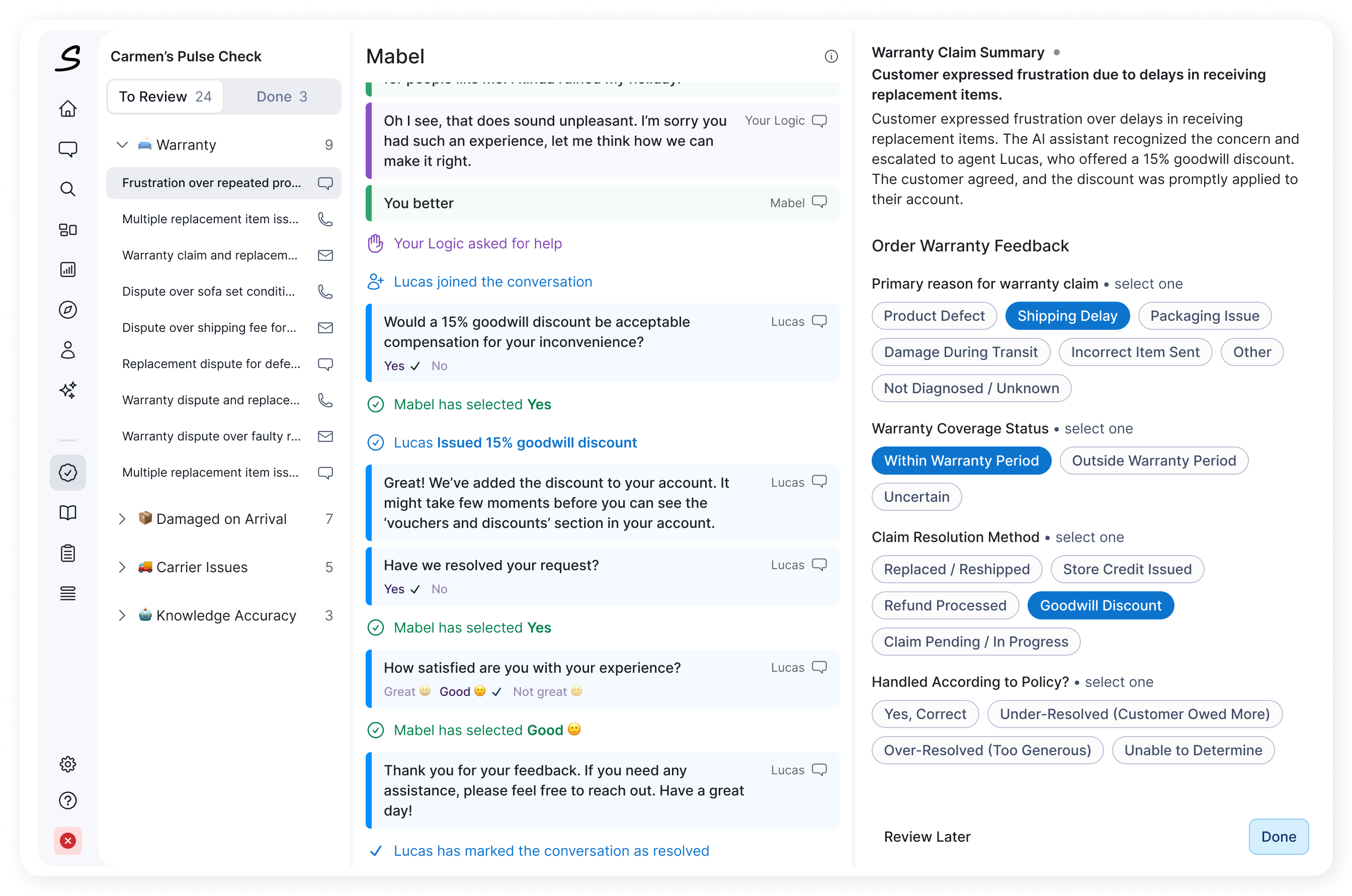
Selection can be based on team, channel, time period, conversation metadata, or existing review results, so different scenarios can follow different review workflows.
Pulse Check supports two workflows:
- Targeted form reviews pair a type of conversation with a purpose-built form, so you can evaluate specific behaviors, risks, opportunities, or process-adherence scenarios.
- Review verification places Salted CX's existing review response workflow inside the targeted queue. You acknowledge a valid finding, dispute an incorrect one, mark the evidence as unclear, or return to it later. It works for any configured review topic; Knowledge Accuracy is one example.
The conversation, its customer journey context, summary, and review task are shown together.
How Pulse Check relates to Agent Home and Vitals
Pulse Check does not create a new review type or a separate verification system. It presents the familiar Salted CX review card and response choices inside a targeted team queue.
- Agent Home
- Shows an agent's performance and feedback.
- Agents open a conversation and respond to a review with Acknowledge, Dispute, or Unclear.
- Pulse Check
- Gives team leaders and reviewers a configured queue of specific conversations and review scenarios.
- It uses the same review responses and adds team and category navigation, Review Later, and To Review / Done progress.
- Vitals
- Monitors the aggregate health of Auto Reviewers and their metrics, using acknowledgement and dispute signals to identify healthy metrics, investigate disputed reviews, and improve reviewer instructions.
A response you make in Pulse Check is saved on the underlying Salted CX review, not in a Pulse Check-only record. For Auto Reviews monitored in Vitals, acknowledgements and disputes feed the same signals Vitals aggregates.
Because this verification state is shared, a review completed elsewhere in Salted CX is no longer unverified and may leave your To Review queue. The Done tab shows reviews you completed.
Start a review
- Open Pulse Check from the main navigation.
- Open To Review.
- Select a category from ‘To Review’ and conversation from the queue.
- Read the conversation and complete the task in the review panel on the right.
- Select the completion action. Pulse Check opens the next conversation.
You will meet two task types:
- Targeted form review: answer the questions in the selected form and select Done.
- Review verification: decide whether to Acknowledge, Dispute, or mark the finding Unclear.
Select Review Later in either workflow when you are not ready to complete the item.
Navigate the queue
Pulse Check has three areas:
- Queue on the left: team, category, and conversation.
- Conversation in the middle, showing what happened and any customer journey context.
- Review panel on the right, showing a summary and the task to complete. If no summary was generated, the panel says so; you can still review from the conversation and other evidence.
Conversations are grouped into categories. A category tells you why a conversation was selected or which review to perform. The number beside a category shows how many conversations it holds; the icon beside each conversation shows its channel, such as chat, email, or voice. Select a category heading to expand or collapse it.
Review with a Feedback form
The correct form is already selected. Answer its questions or tag behavior while reading the conversation. Learn more about Forms.
- Select a conversation from To Review.
- Read the relevant part of the customer journey.
- Check the summaries and context in the review panel.
- Answer the questions in the form.
- Select Done.
Answers save automatically, so there is no separate save step. Any saved answers remain when you return.
Done becomes active only after the required completion answer has saved. Answering other questions does not complete the review on its own; you must select Done to move the conversation to your Done list.
Select Review Later to move on without completing the current review. The conversation stays in To Review.
Verify a review
Some categories ask you to verify an existing review or AI finding. Read the conversation first, then check the review question, result or score, and the comment or evidence.
- Dispute needs a comment explaining what is incorrect and which evidence or knowledge should apply. You cannot submit an empty comment. Disputes help surface misalignment and improve auto reviews. Learn more in Acknowledge and Dispute Reviews.
- Unclear does not require a comment. Use it only after reviewing the evidence and deciding it is not enough.
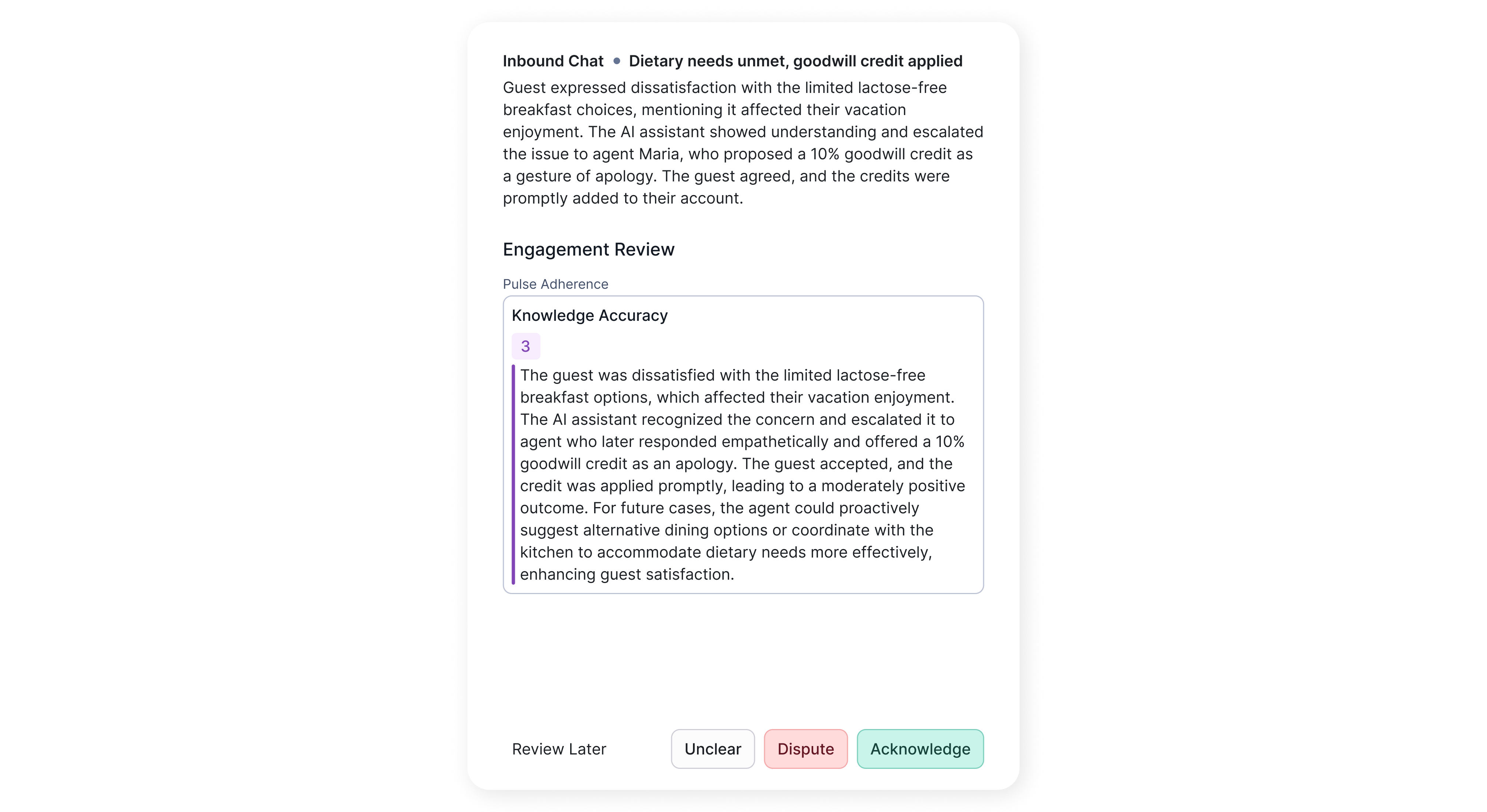
Review Later and Unclear are not the same. Review Later leaves the review open with no decision, so it can appear again. Unclear records a completed decision that the evidence is insufficient. Use Review Later for timing, Unclear for uncertainty about the result.
Move through the queue
After you save Done, Unclear, Dispute, or Acknowledge, Pulse Check opens the next conversation: the next in the current category, then the first in the next category, and the team view when nothing is left. Review Later follows the same sequence without completing the item.
If a save fails, Pulse Check keeps the conversation open and shows an error. Check your connection and try again.
Return to completed reviews
The Done tab shows the reviews you completed for the selected team, not a combined history for all reviewers. Use it at the end of a session to confirm your work saved.
- Open a completed form review to see its saved answers. Updates still autosave, but the completion buttons are hidden.
- Open a completed verification to see the saved decision, with the selected action highlighted. You can change it to correct a decision.
How conversations are selected
Your administrator prepares the teams, categories, forms, selection rules, and time periods. Pulse Check therefore shows a focused queue, not every conversation a team handled, and does not provide controls to change those rules. Conversations in a category run from the newest relevant review to the oldest.
The same conversation can appear in more than one category when it matches more than one scenario. Review it in the context of the category and form shown.
A conversation you expect may be absent when it belongs to another team, its relevant review falls outside the configured period, it does not match the category filters, the configured review is not completed, or another user already verified it.
The queue is focused work, not a representative sample of an agent's overall performance. Read the relevant conversation before deciding, use the summary to orient yourself rather than replace the conversation, and follow your organization's process for discussing disputes, repeated unclear cases, or knowledge gaps.
Learn more in AI-Powered Quality Assurance and Auto Reviews Accuracy.