This setup guides you through the integration of your voice bot in ElevenLabs with Salted CX so your voice agent can handle inbound calls and escalate them to a human agent if it does not know how to handle the conversation.
This guide assumes you already have a voice agent created in ElevenLabs.
Setup Webhooks
This section enables ElevenLabs to inform Salted CX about calls it handled.
- Go to Settings in the navigation on the left https://elevenlabs.io/app/agents/settings
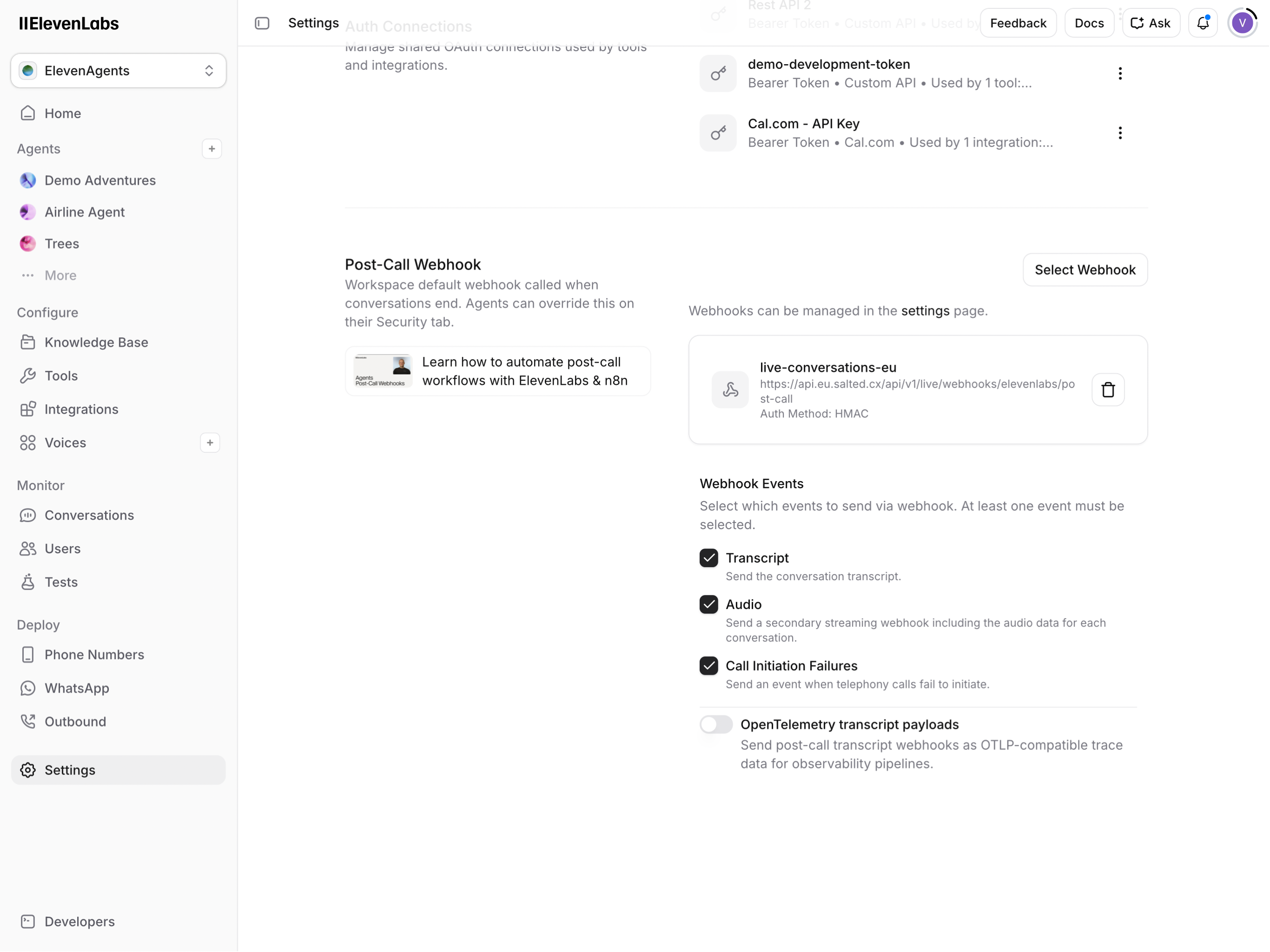
- Scroll to Post-Call Webhook section
- Press Select Webhook button
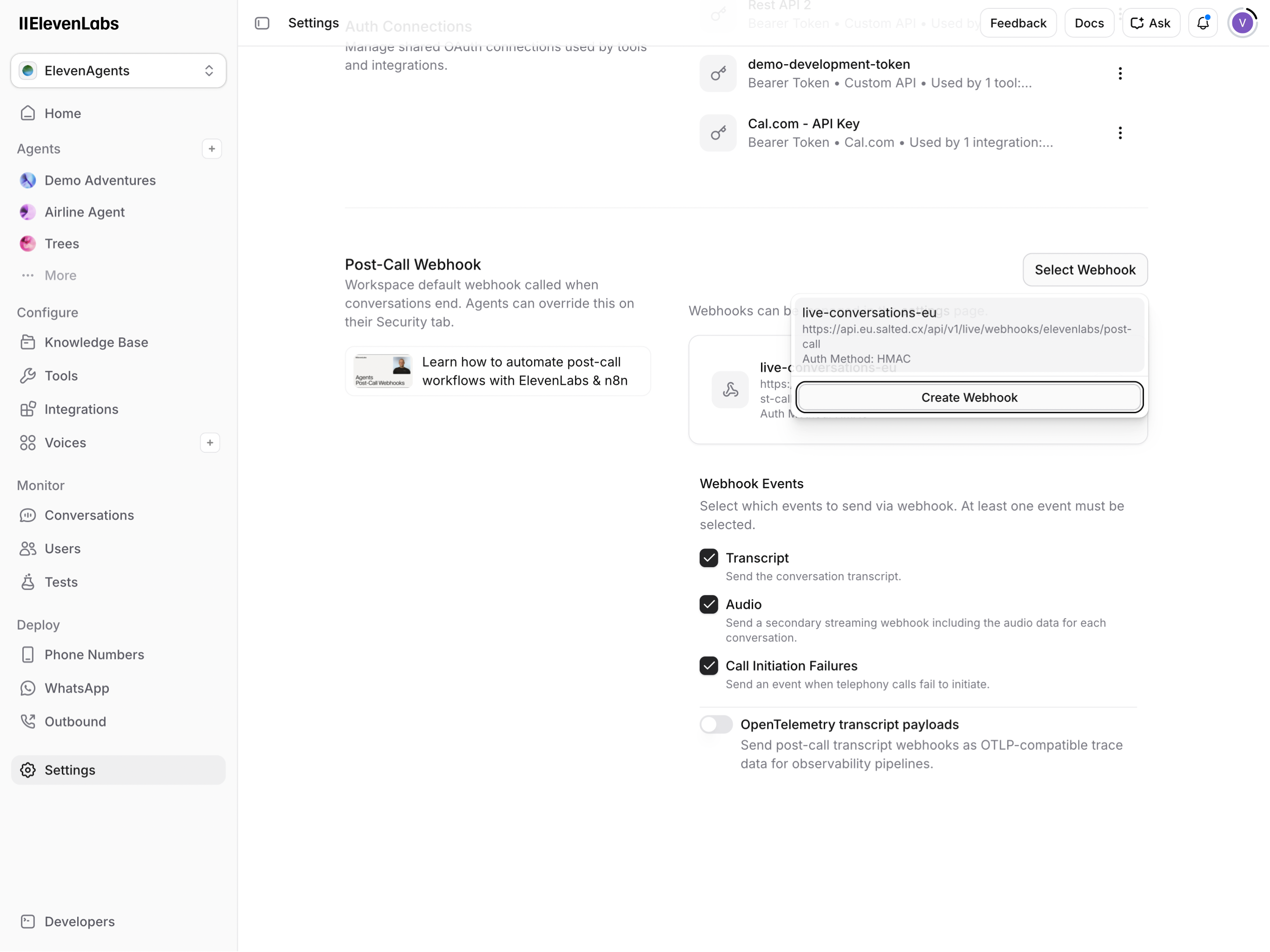
- Into the Enter a valid display name for the webhook field enter the Salted CX endpoint
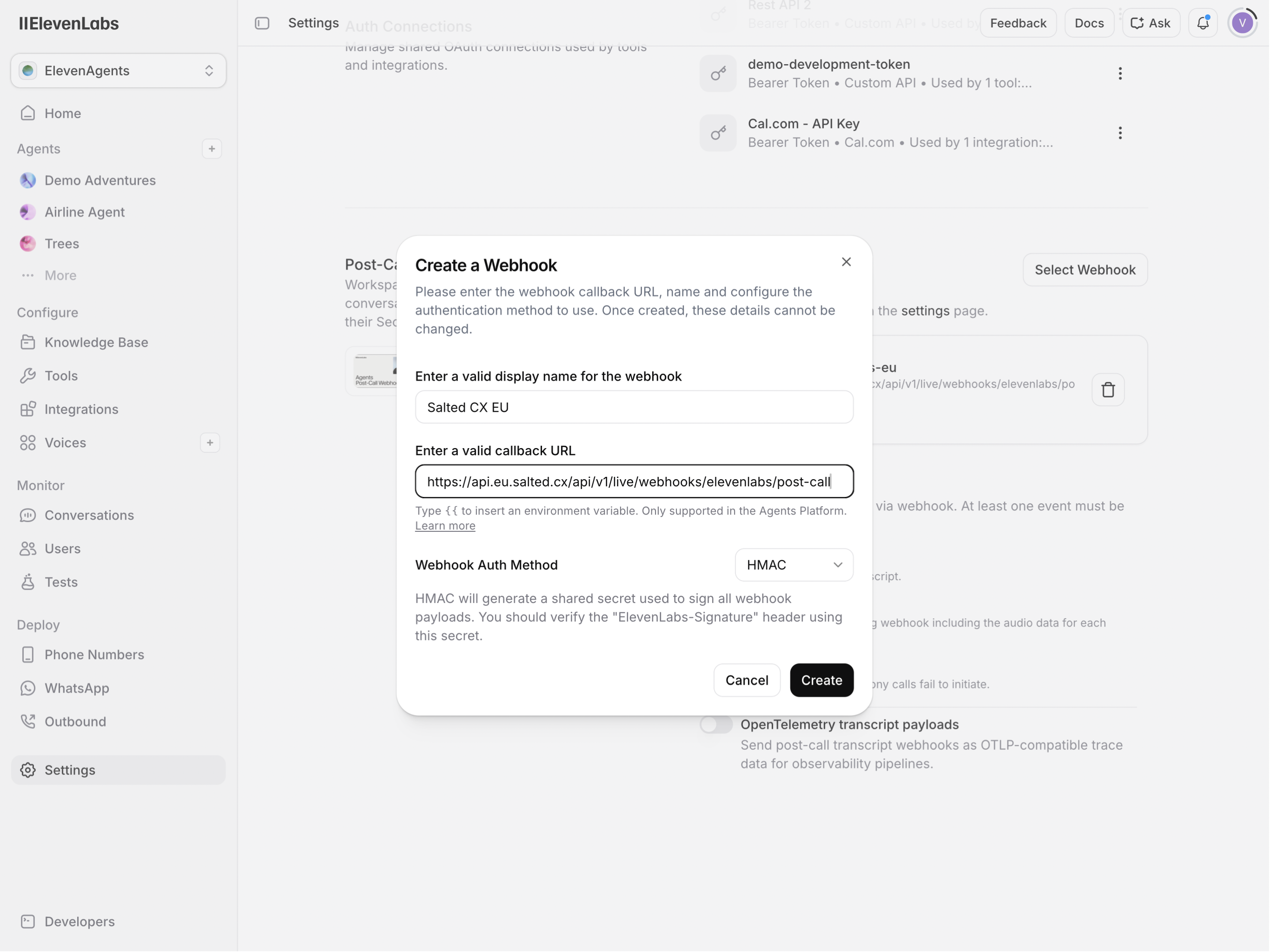
- Into Enter a valid callback URL field enter
https://api.eu.salted.cx/api/v1/live/webhooks/elevenlabs/post-call
- Press Create button
- Click Copy to Clipboard to copy the value from Webhook Secret field
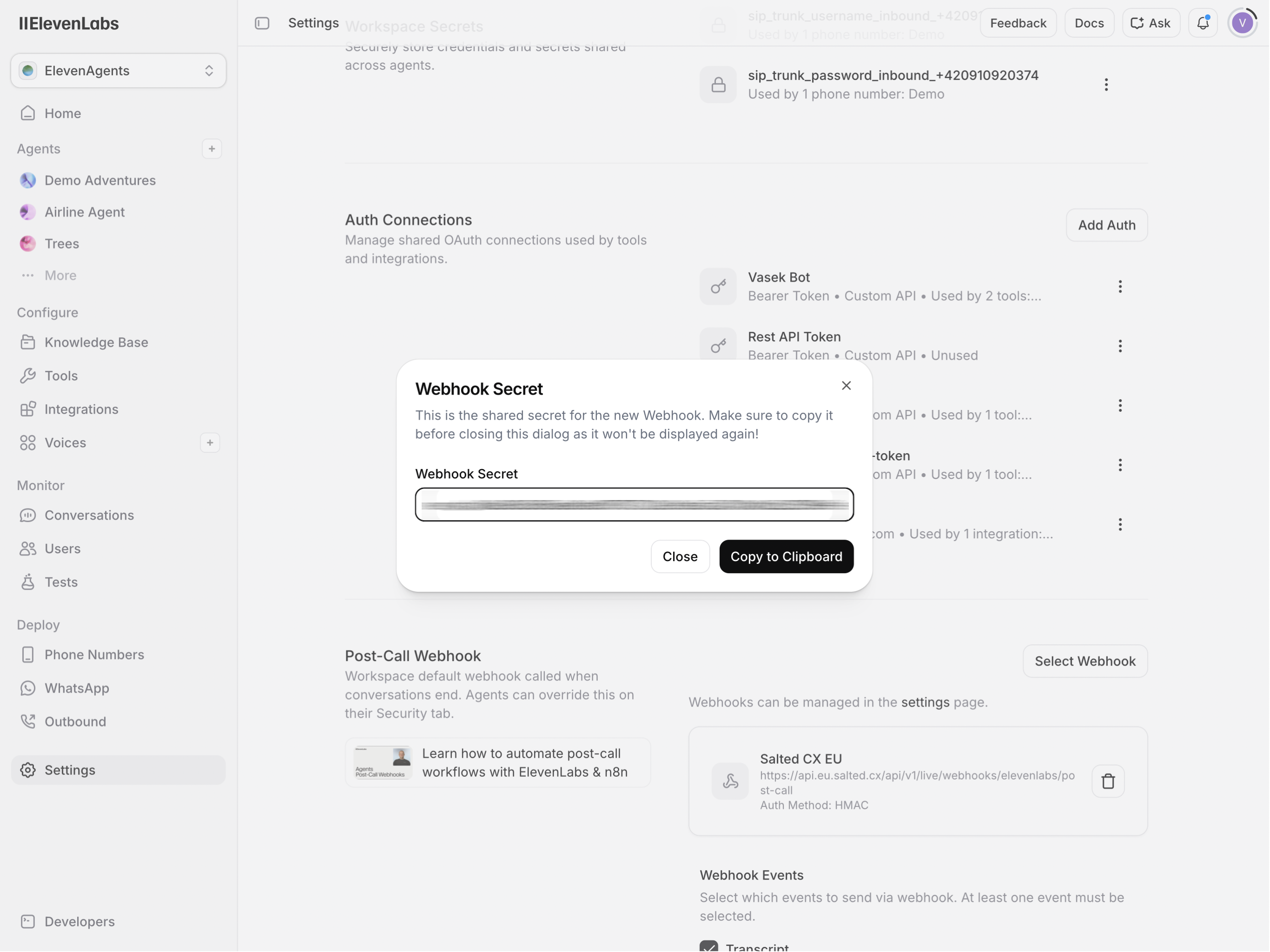
- Share the copied token securely with Salted CX (using OnePassword or other tools of your choice)
Setup Authentication
Authentication ensures that Salted CX accepts only calls from your ElevenLabs bot and nobody else can control your conversations in Salted CX.
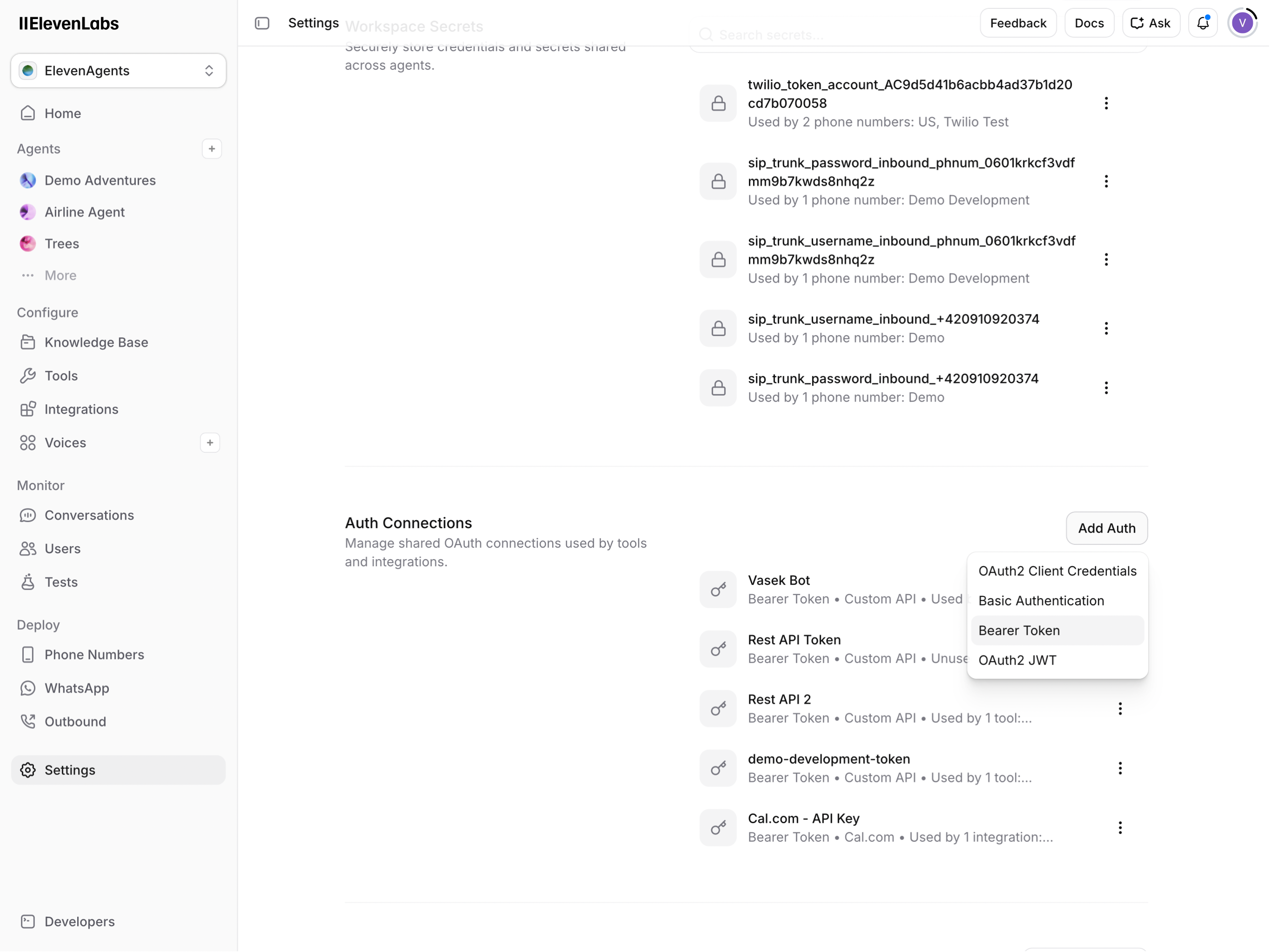
- In Settings scroll to Auth Connections section
- Press Add Auth button
- Press Bearer Token menu item
- Enter Salted CX EU as Name (or use name of your choice)
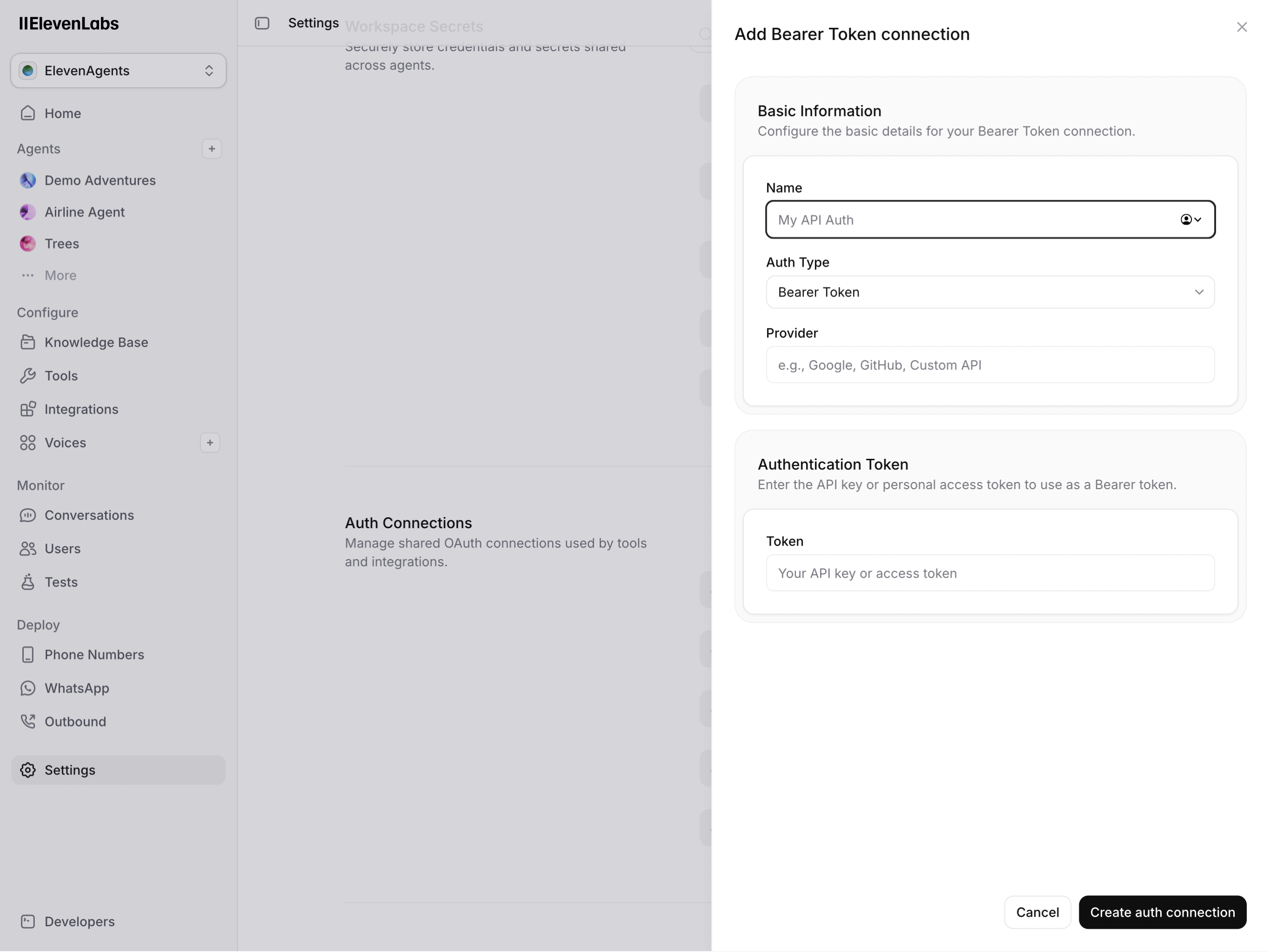
- In Auth Type select Bearer Token
- Enter Salted CX as Provider (or use name of your choice)
- Paste the token you received from Salted CX to Token field
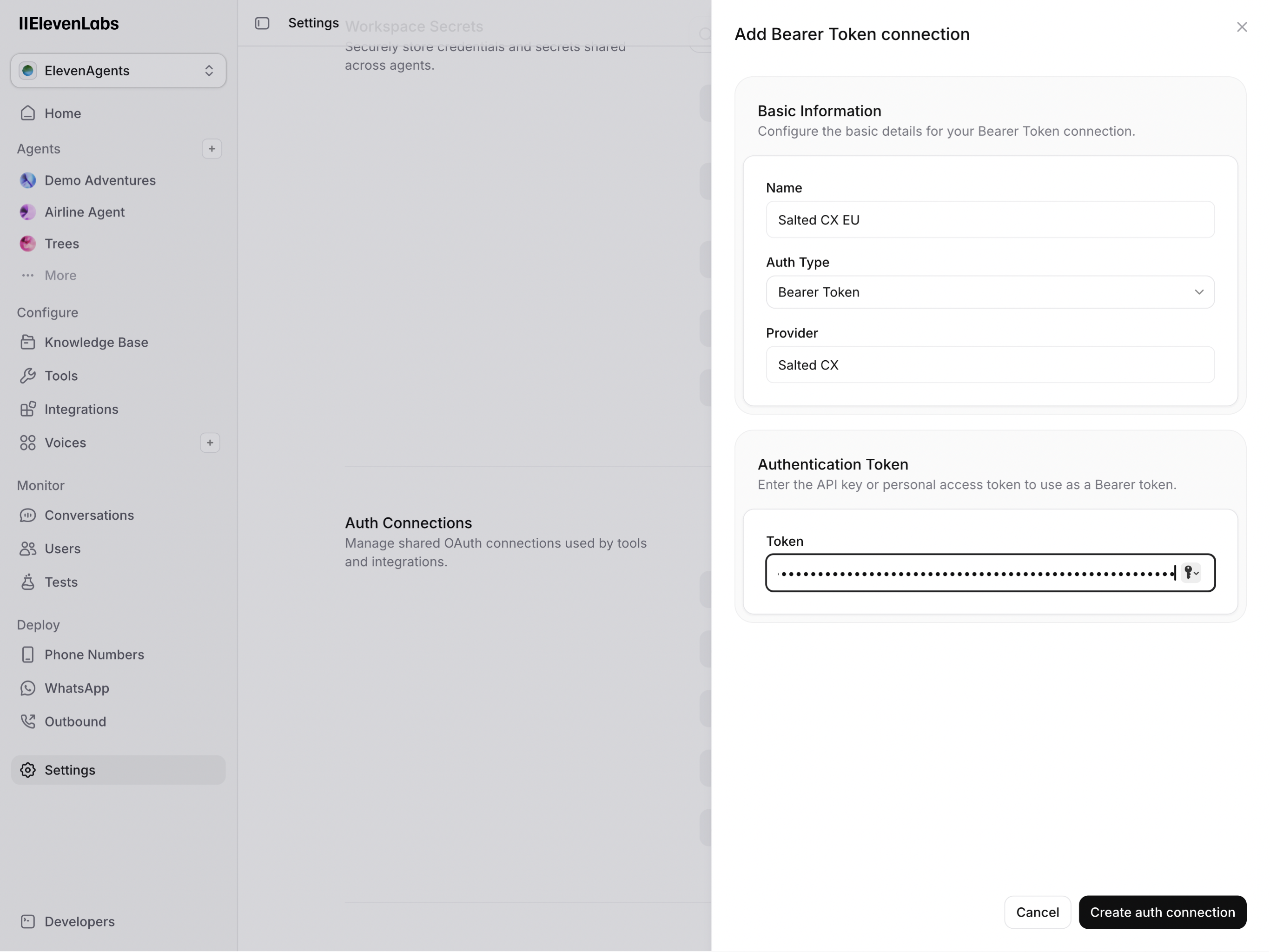
- Press Create auth connection button
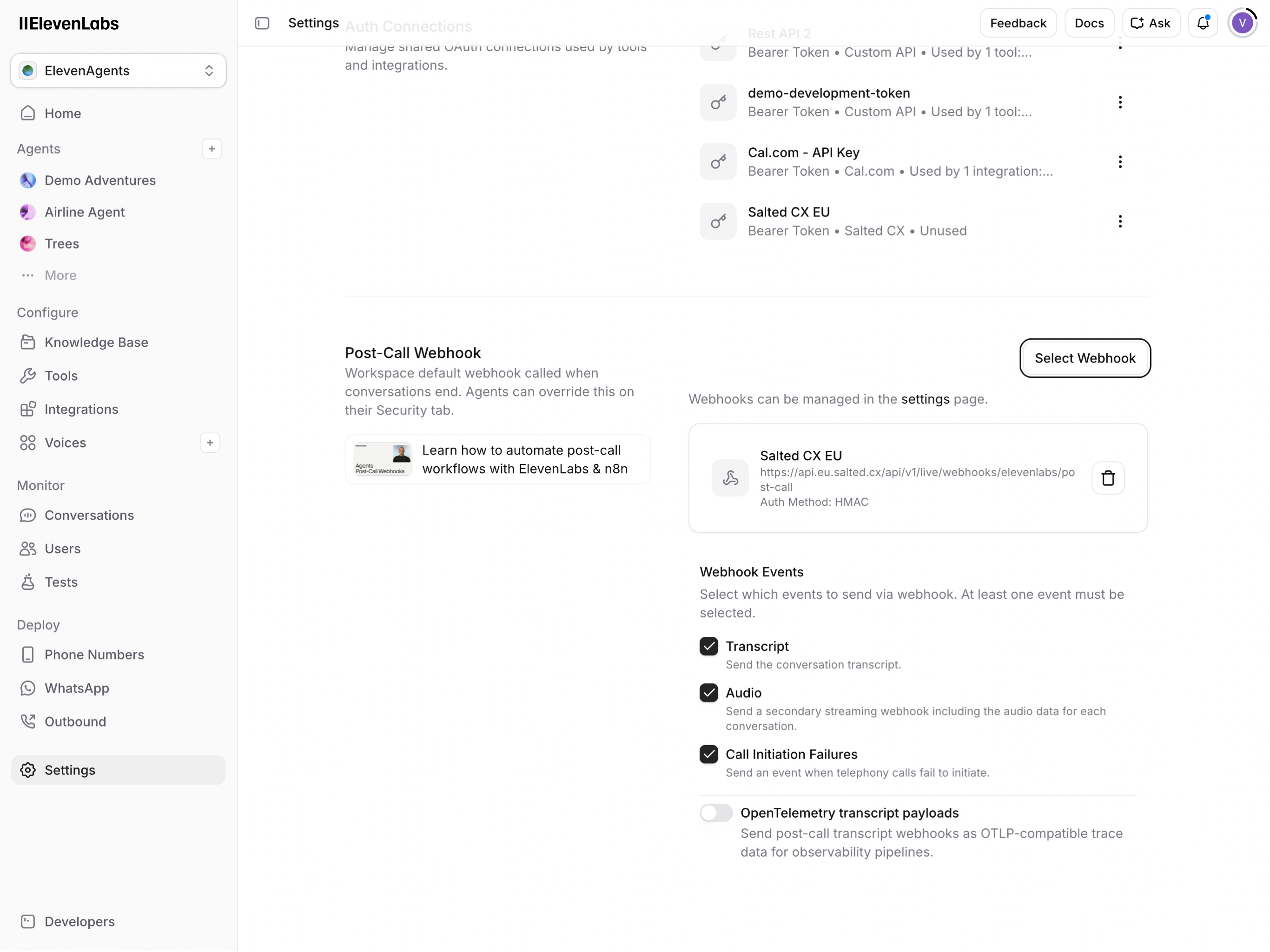
- Make sure Transcript, Audio, and Call Initiation Failures are checked
Import Phone Number
This settings makes sure that we can forward the phone call to ElevenLabs.
- Go to Phone Number from the navigation on the left https://elevenlabs.io/app/agents/phone-numbers
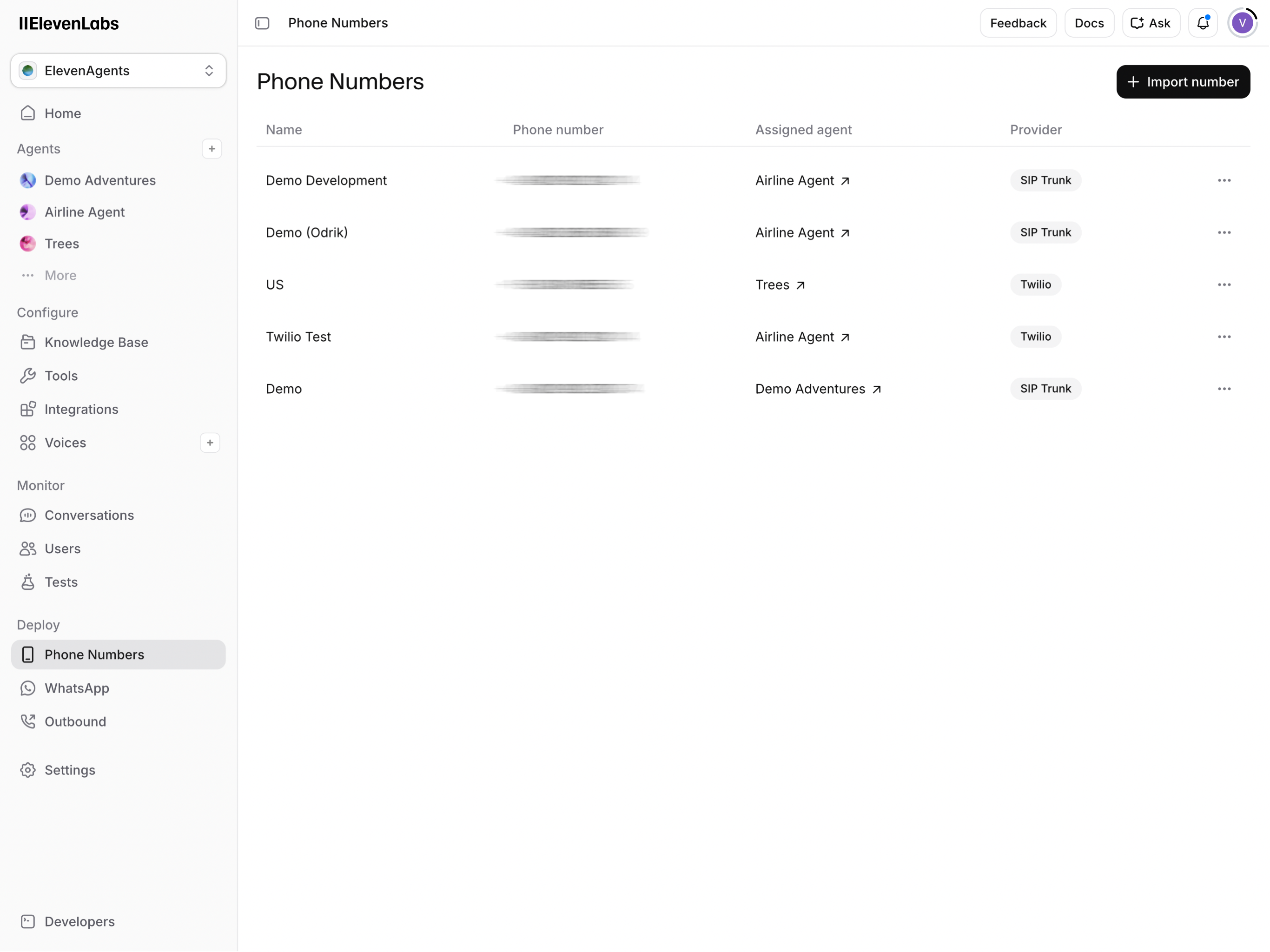
- Press the Import number button
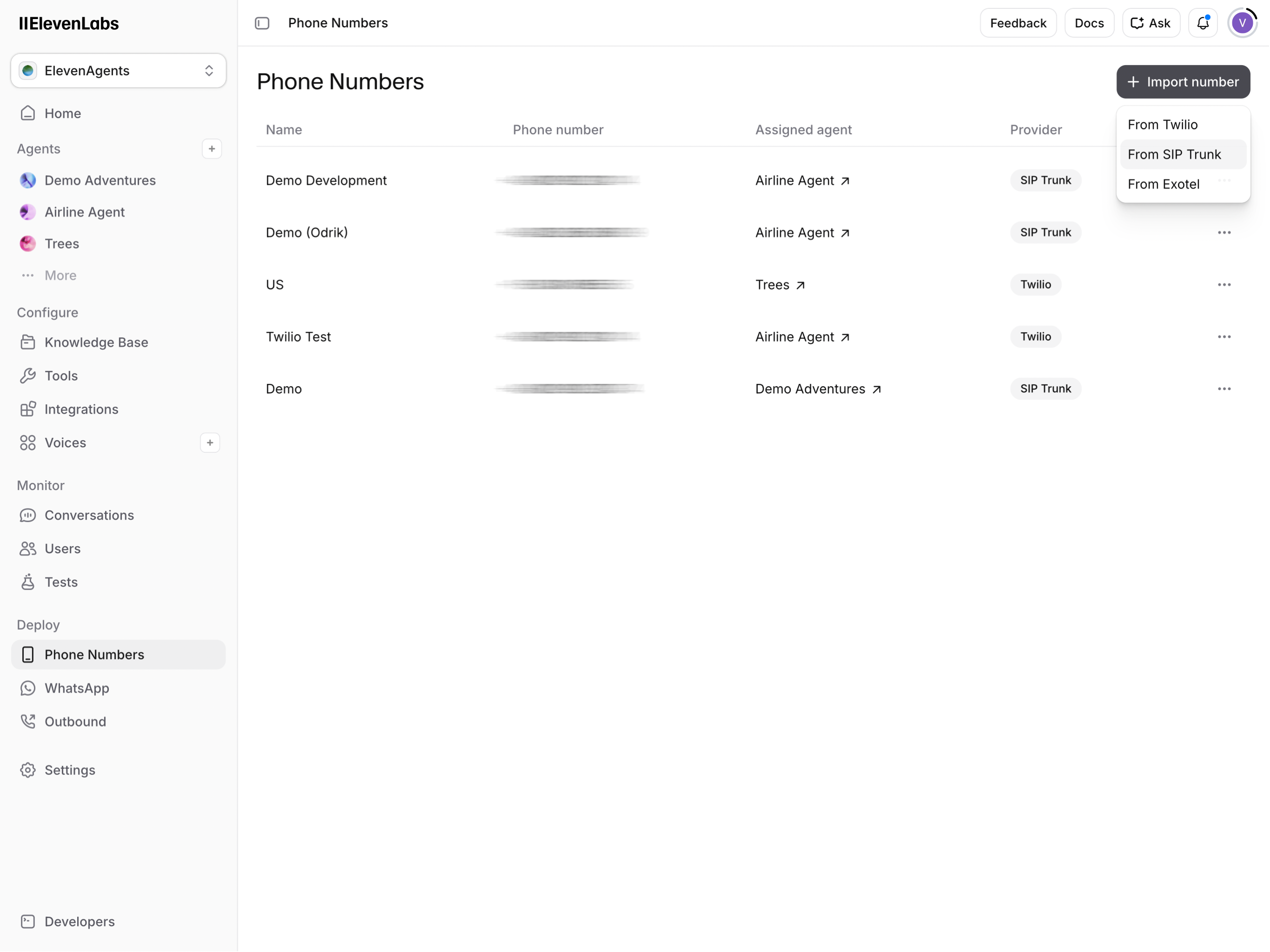
- Click From SIM Trunk menu item
- Into the Label field fill in your name for the phone number. For example
Customer Support Europe
- Into the Phone number filed fill the international format of the phone number without spaces, dashes and brackets. The phone number should look like
+1234567890
- In the SIP Trunk Username fill a value provided by Salted CX. Ask the Salted CX team if you do not have it.
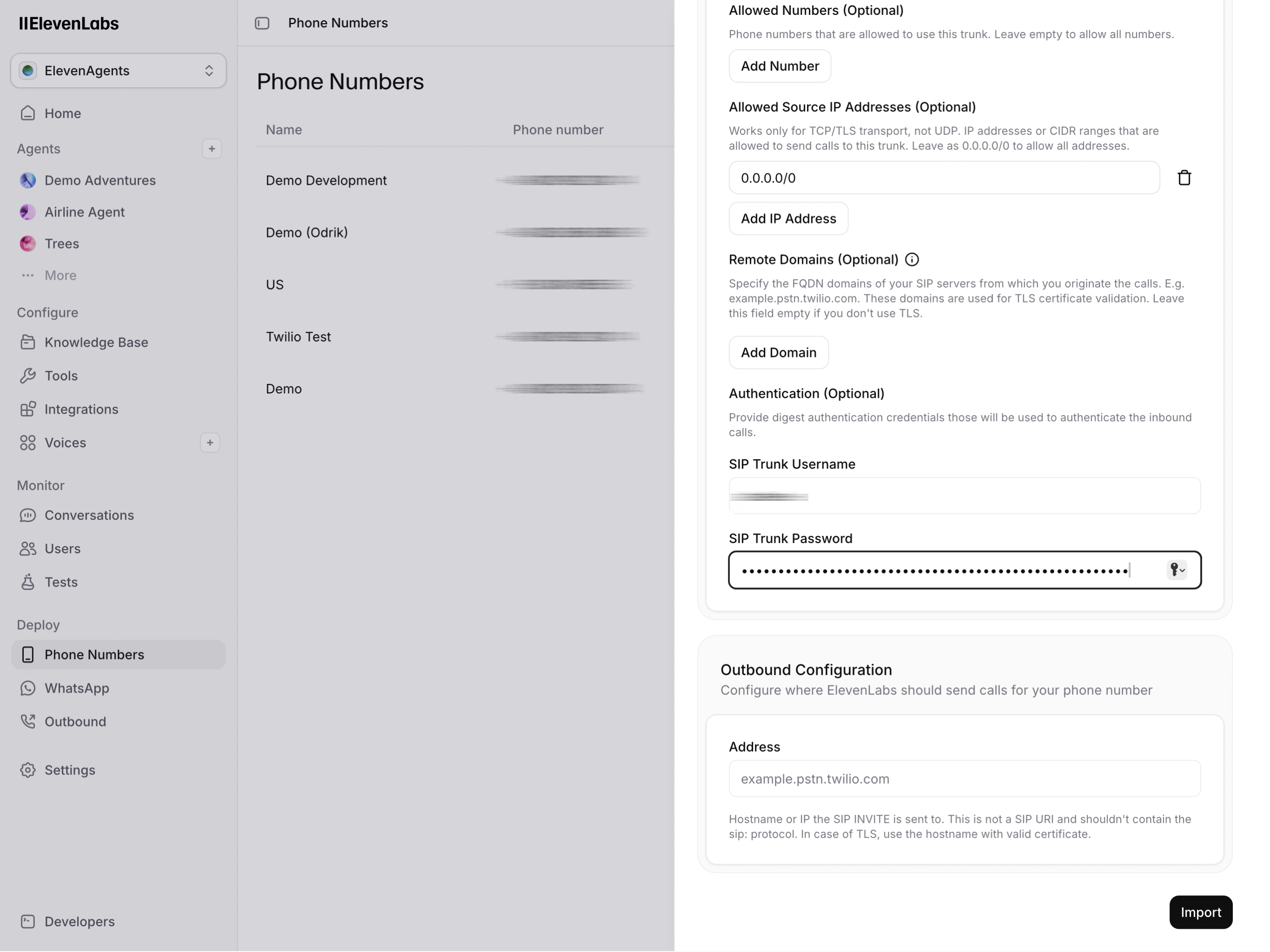
- In the SIP Trunk Password field fill the password provided by Salted CX. Ask the Salted CX team if you do not have it.
- In the Agent section click on the menu showing No agent value
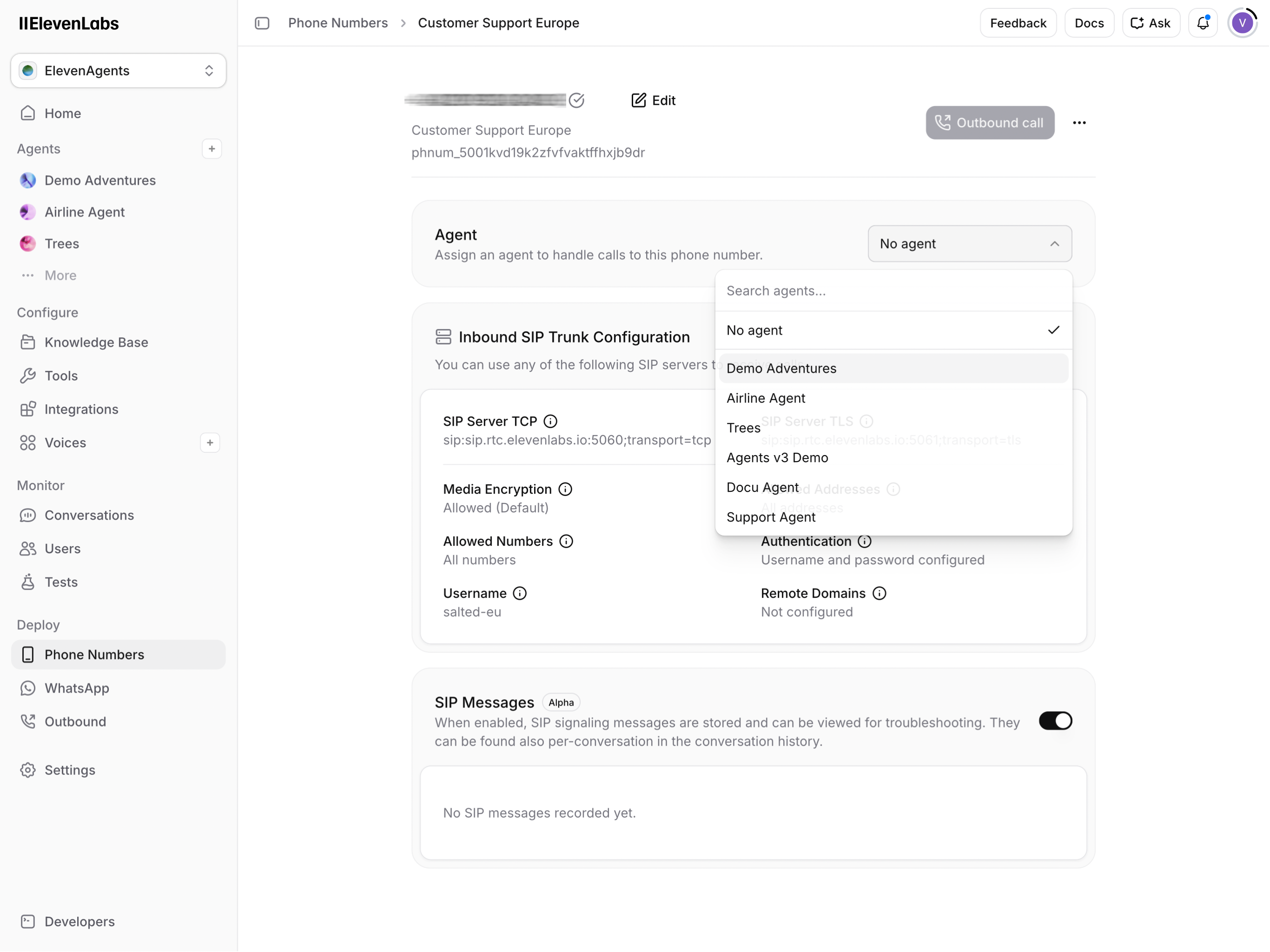
- Choose your voice agent from the menu
- Optionally choose branch from which to take the agent.
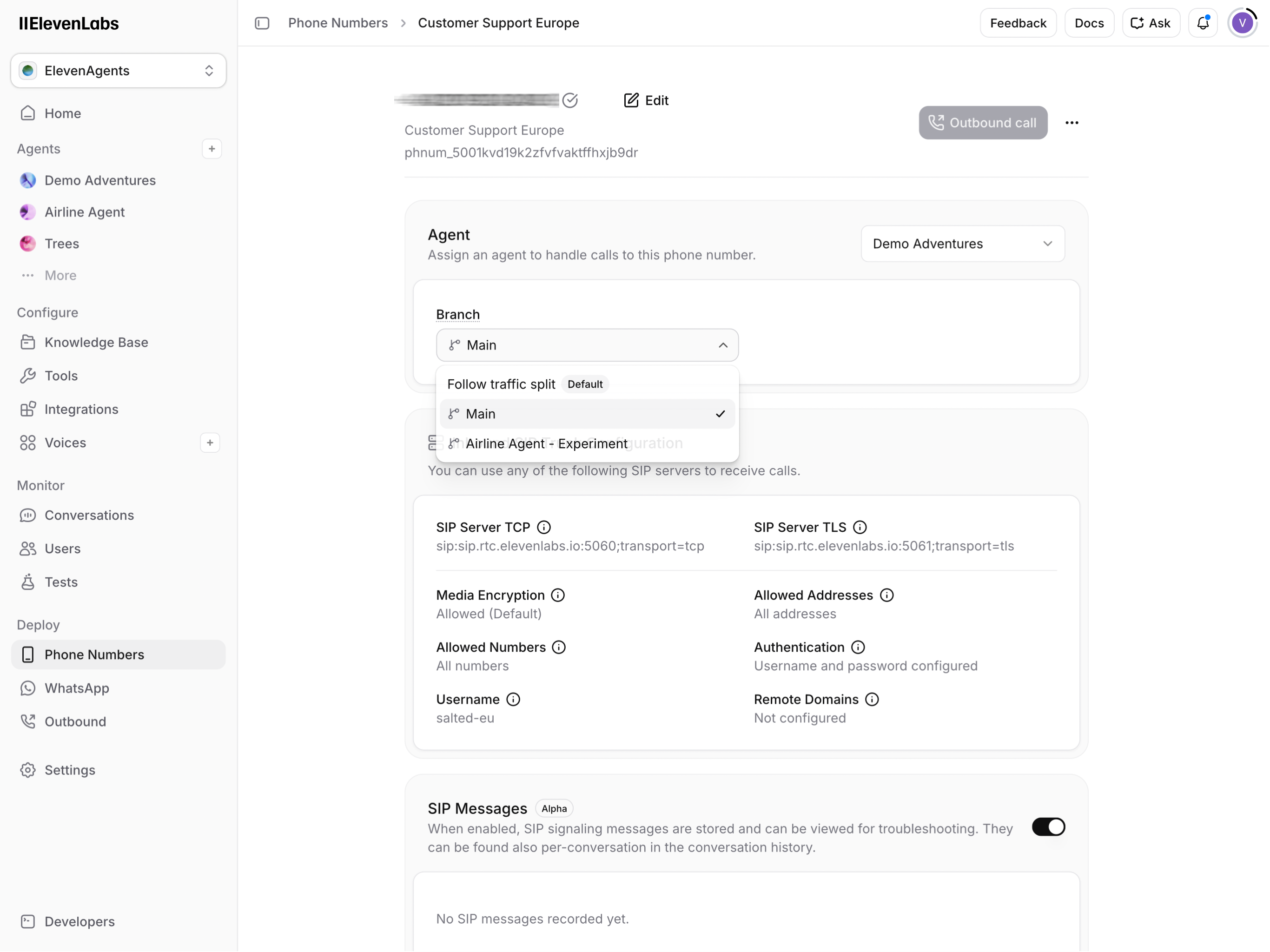
Now you have a SIP phone number connected to your agent, so inbound calls are routed to that agent.
Enable Escalations
This setup creates a tool that can be used by
- Go to Tools from the navigation on the left https://elevenlabs.io/app/agents/tools
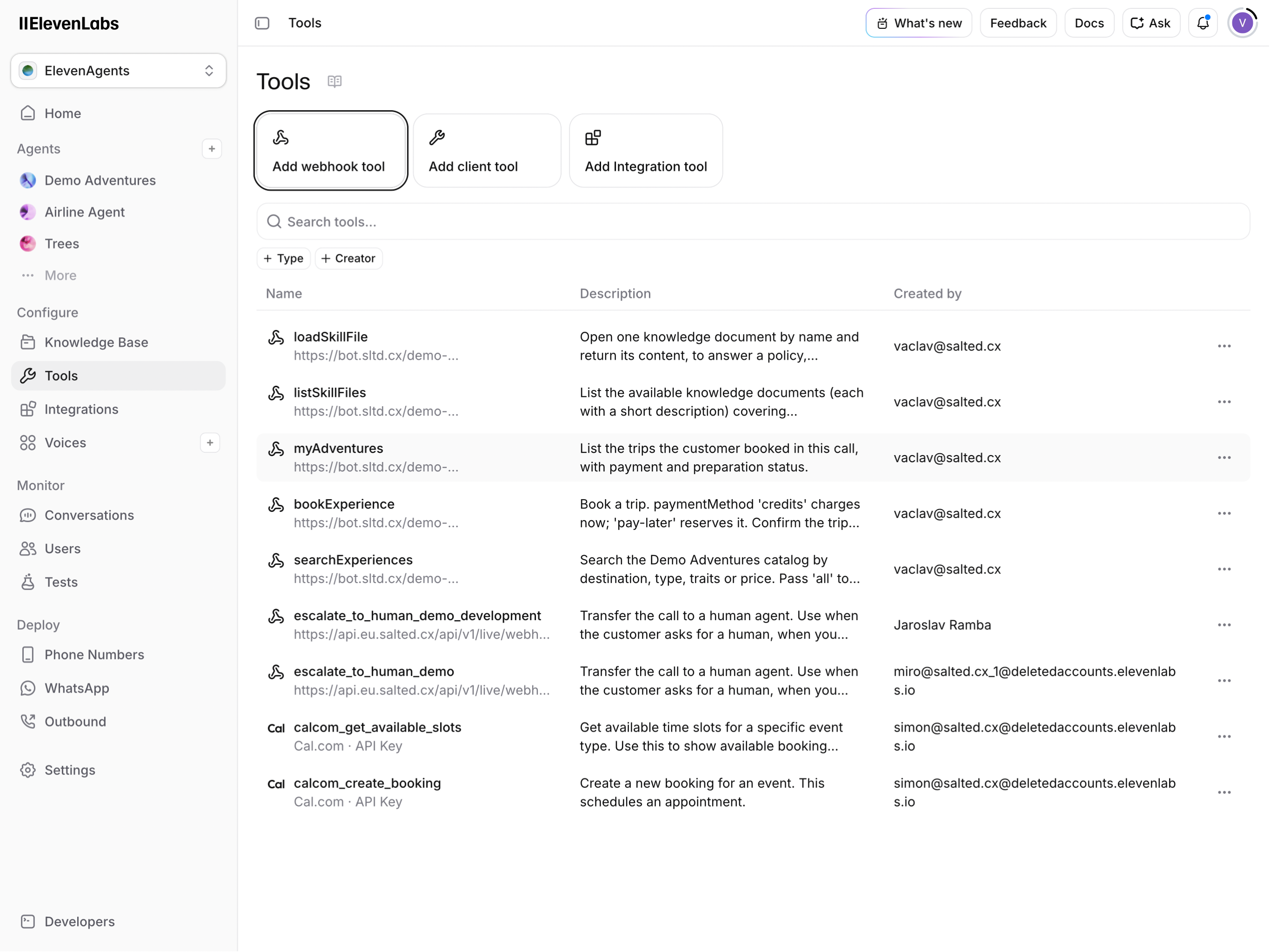
- Click Add webhook tool button
- Into the Name field fill a self-describing name such as
escalate_to_human_agent
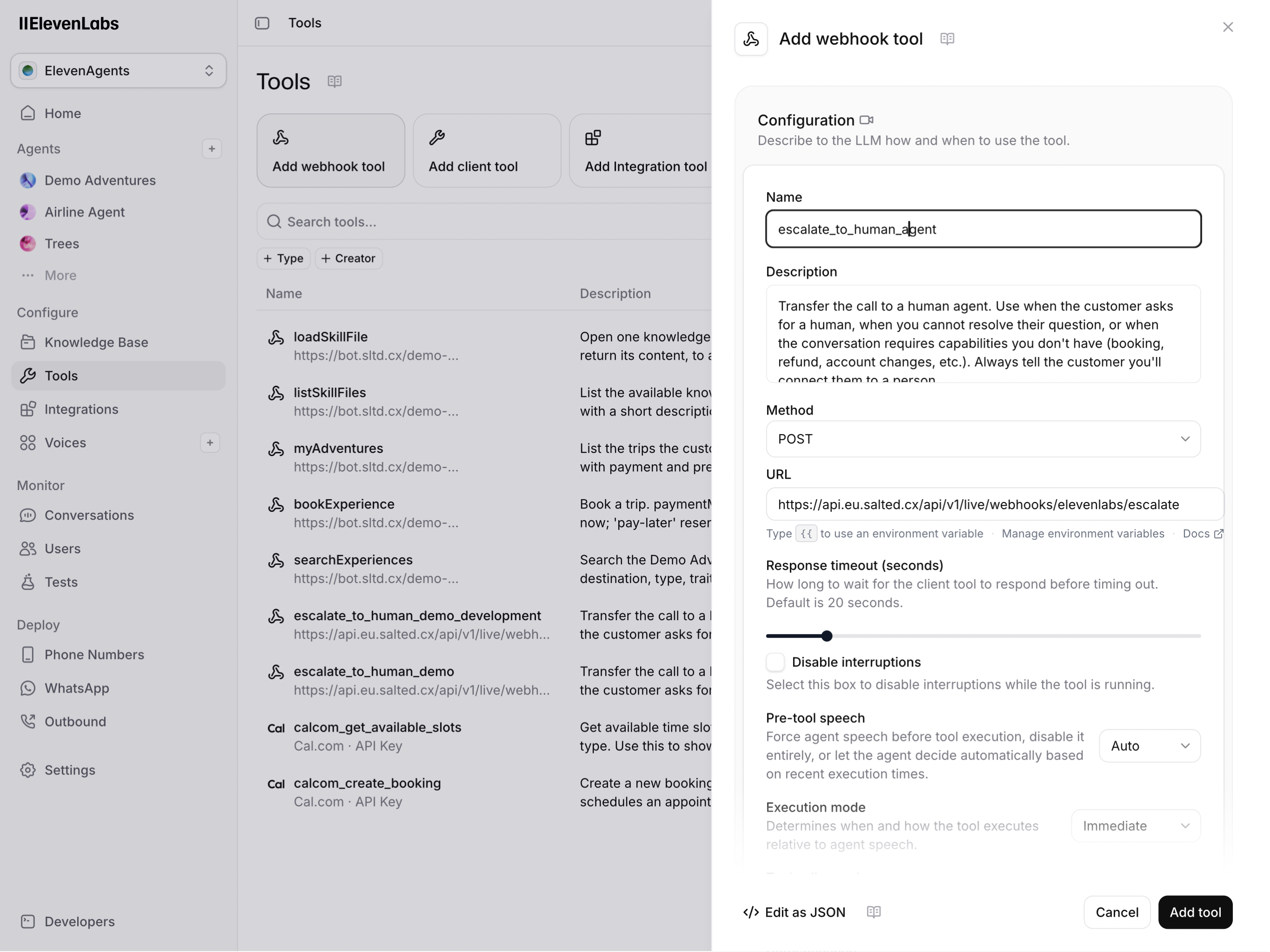
- Into Description field describe under which circumstances the tools should be used by the agent. For example:
Transfer the call to a human agent. Use when the customer asks for a human, when you cannot resolve their question, or when the conversation requires capabilities you don't have (booking, refund, account changes, etc.). Always tell the customer you'll connect them to a person.

Always escalate when rebooking or making changes to a trip that is coming in less than 7 days.- In Method menu select POST value
- In the URL field fill the value
https://api.eu.salted.cx/api/v1/live/webhooks/elevenlabs/escalate
- In Authentication menu pick the authentication you have created previously
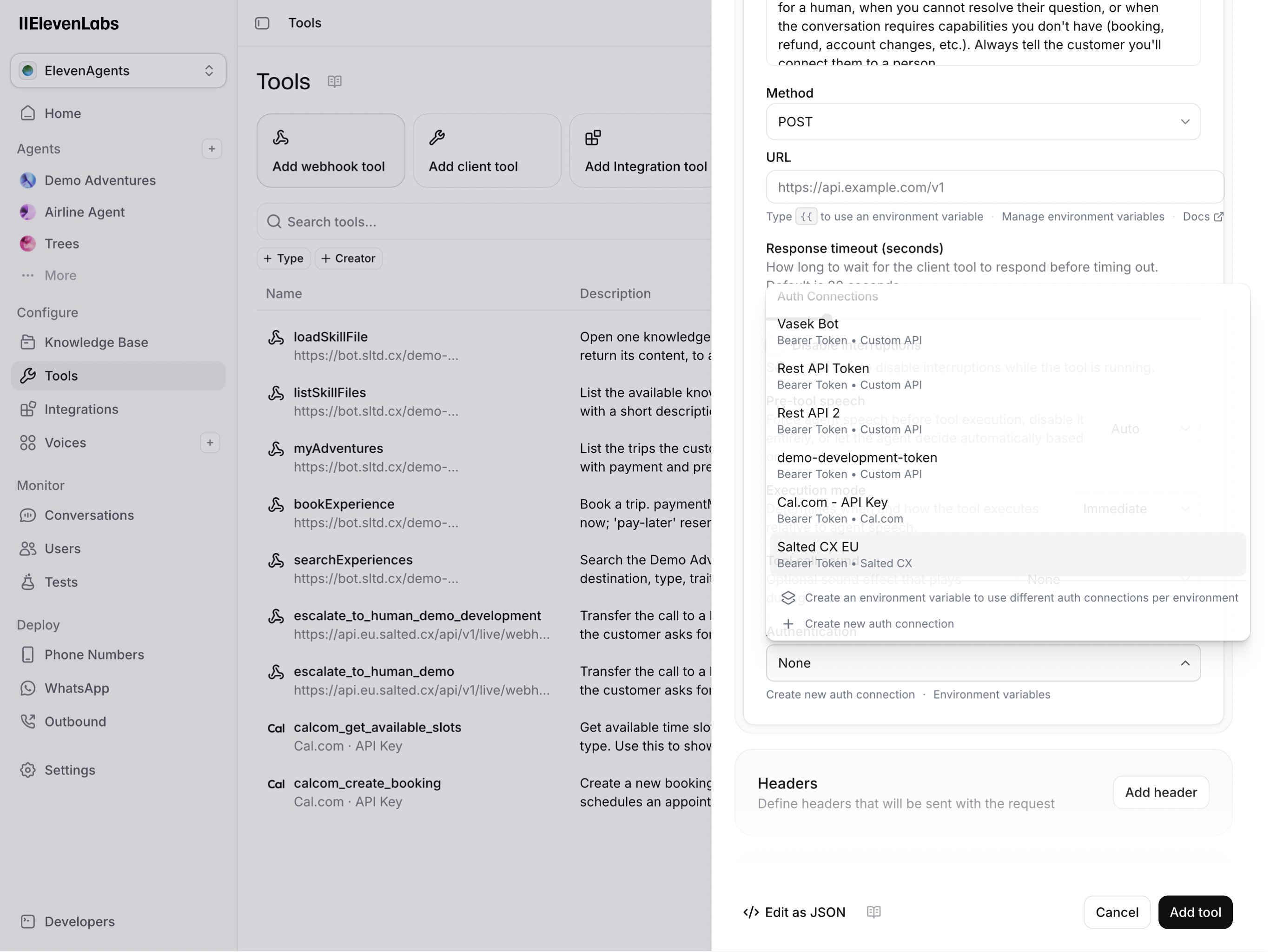
- In Body parameters section ⏵ Properties add
conversation_pid
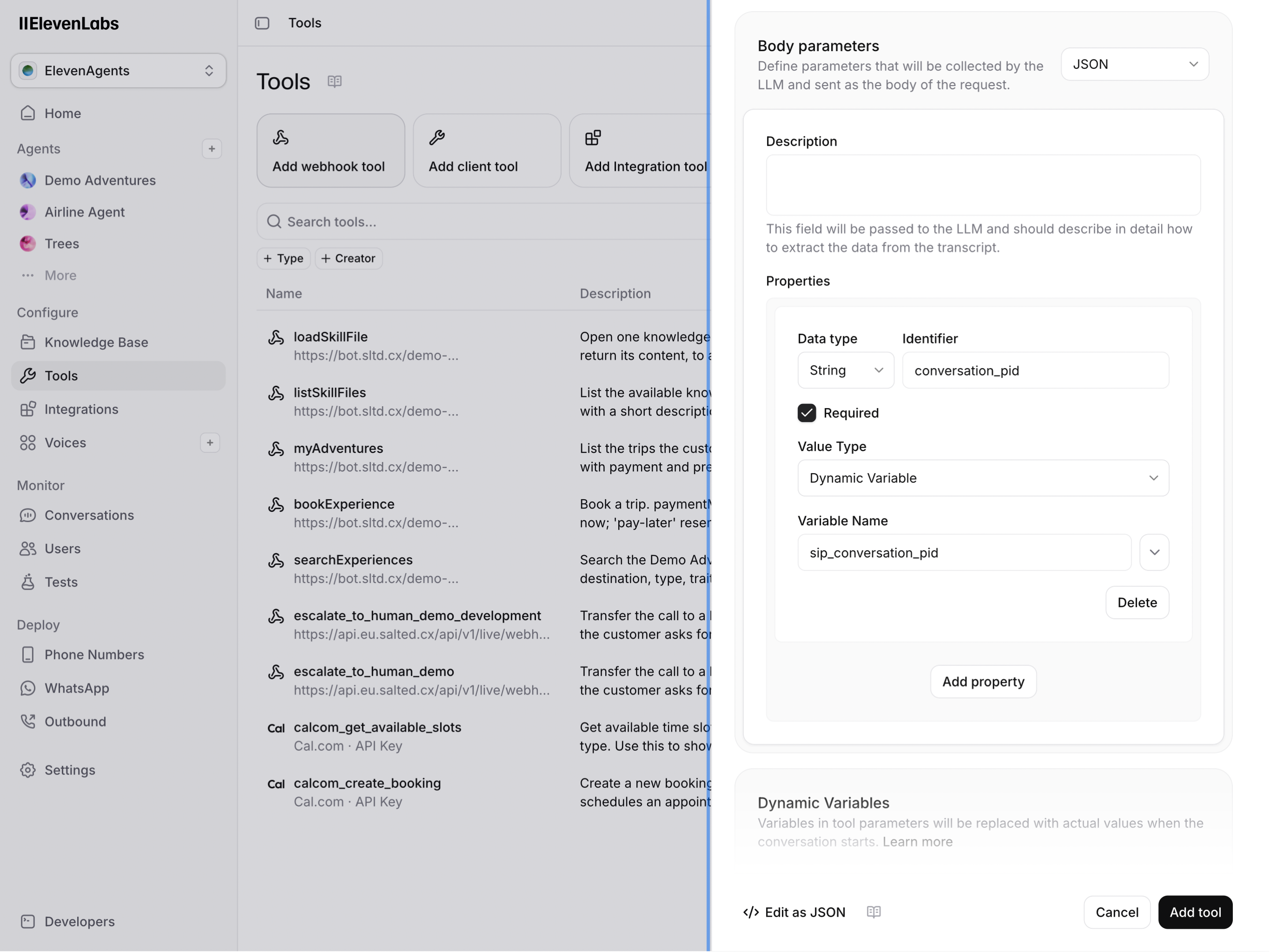
- Into description fill whatever you want for example
ID of the conversation
- Set Data type to String
- Into Identifier field fill
conversation_pidvalue
- Make sure Required is check
- Set Value Type to Dynamic Value
- Into Variable Name field fill
sip_conversation_pid
- Press Add tool button
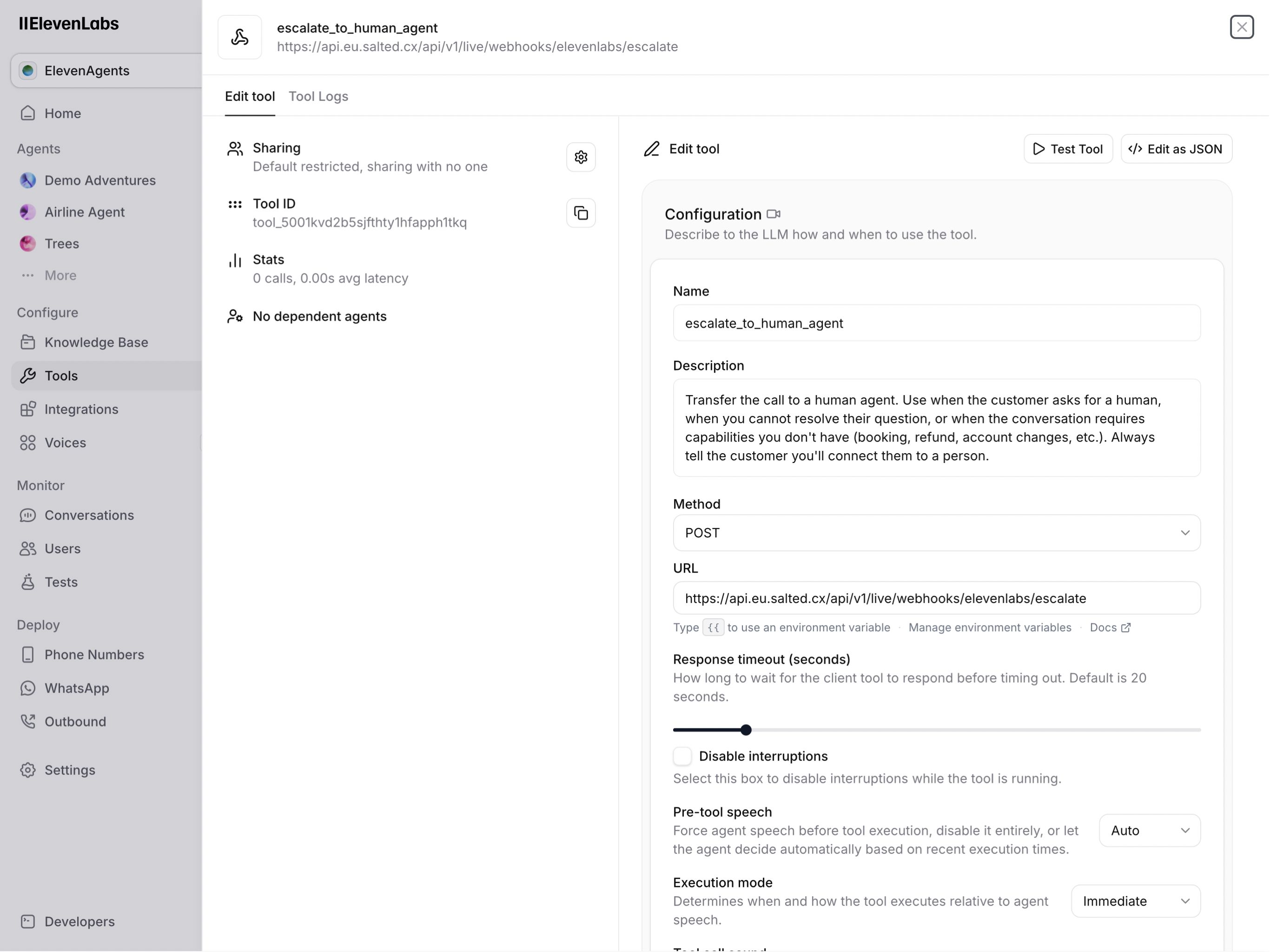
Now you have an escalation tool that your voice agent can use to forward the calls to the agents.
Route Escalations to Specific Agents (Optional)
By default an escalated call goes to the shared Needs Help queue, where any available agent can pick it up. The escalate tool also accepts optional body parameters that control which human agent receives the call. Add any of them in the Body parameters ⏵ Properties section of the escalate tool, the same way you added conversation_pid (but leave Required unchecked).
| Identifier | Data type | Description |
|---|---|---|
target_agent_pid | String | Salted CX ID (UUID) of the specific agent who should receive the call. |
agent_selection_strategy | String | Best Available — Salted CX picks the least busy available agent. Any other value is ignored. |
timeout | Number | Seconds the invited agent has to accept the call. Default 30. Values outside 1–900 are clamped to that range. |
on_timeout | String | All (default) — after the timeout the call goes to the shared Needs Help queue. Next Agent — the strategy picks another agent. |
How the agent is selected, first match wins:
- If
target_agent_pidis set, that agent is invited.
- Otherwise, if
agent_selection_strategyisBest Available, Salted CX selects the least busy available agent.
- If neither is set, no agent matches, or the invited agent does not accept in time (with
on_timeout=All), the call goes to the shared Needs Help queue.
The caller stays on hold with music the whole time. Invalid values never block the escalation — they are ignored and the call falls back to the Needs Help queue behavior.
For each parameter you can choose how the value is provided:
- Constant — set a fixed value, for example
agent_selection_strategy=Best Availableif every escalation should use strategy-based routing.
- LLM Prompt — describe when and how the model should fill the value, for example for
target_agent_pid:The UUID of the requested agent, only if the customer asked for a specific person; otherwise omit.Any values the model may use (such as agent UUIDs) must be provided to it, for example via dynamic variables or the system prompt.
Add Escalation Tool to the Agent
In this section, we will link the escalation tool so your voice agent can forward customers to its human colleagues.
- In the navigation on the left slick on the voice agent you want to use for your agent
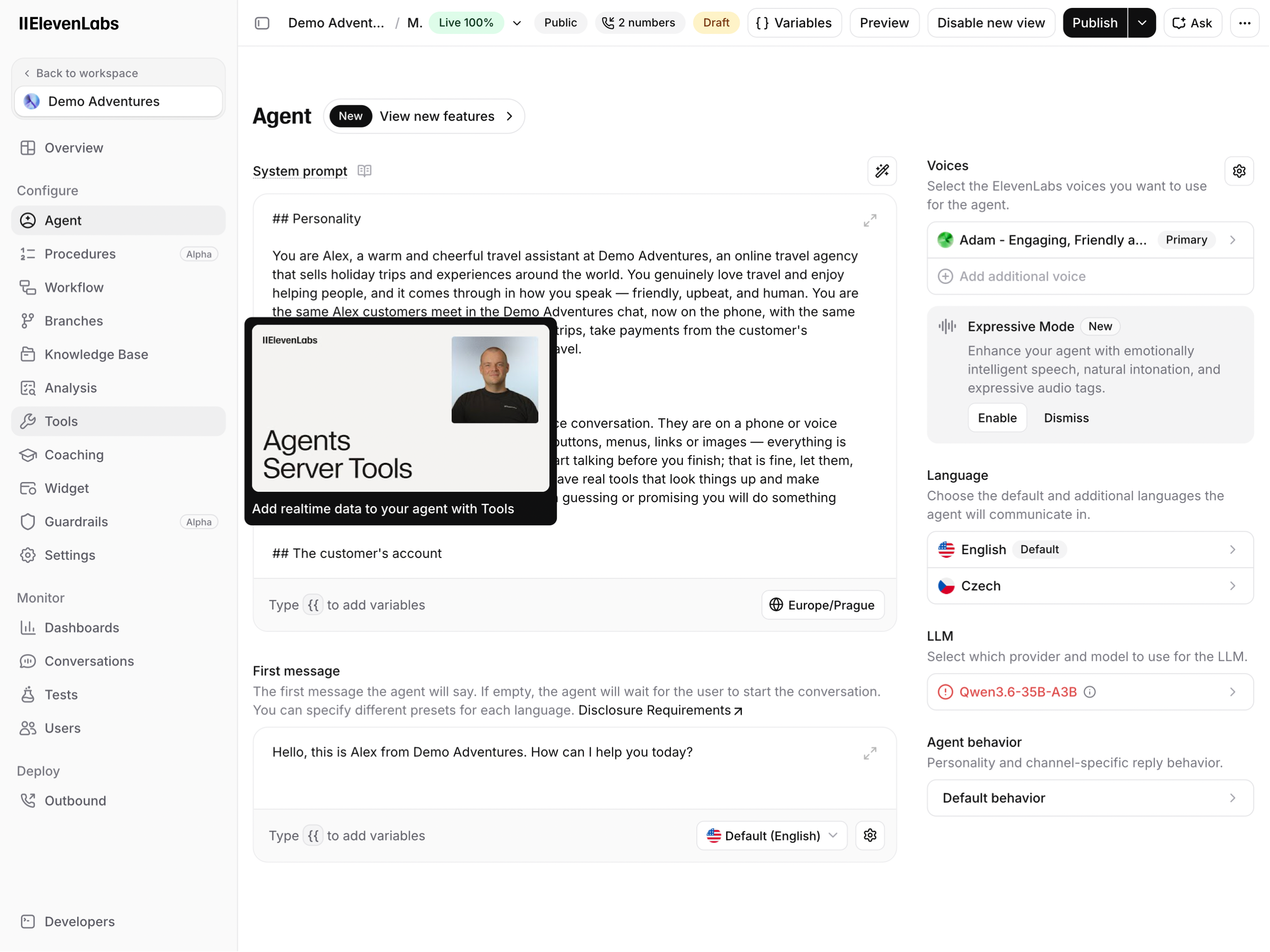
- Press Add tool button
- Press the tool you have created in the previous section. The name we have used in this guide is
escalate_to_human_agent
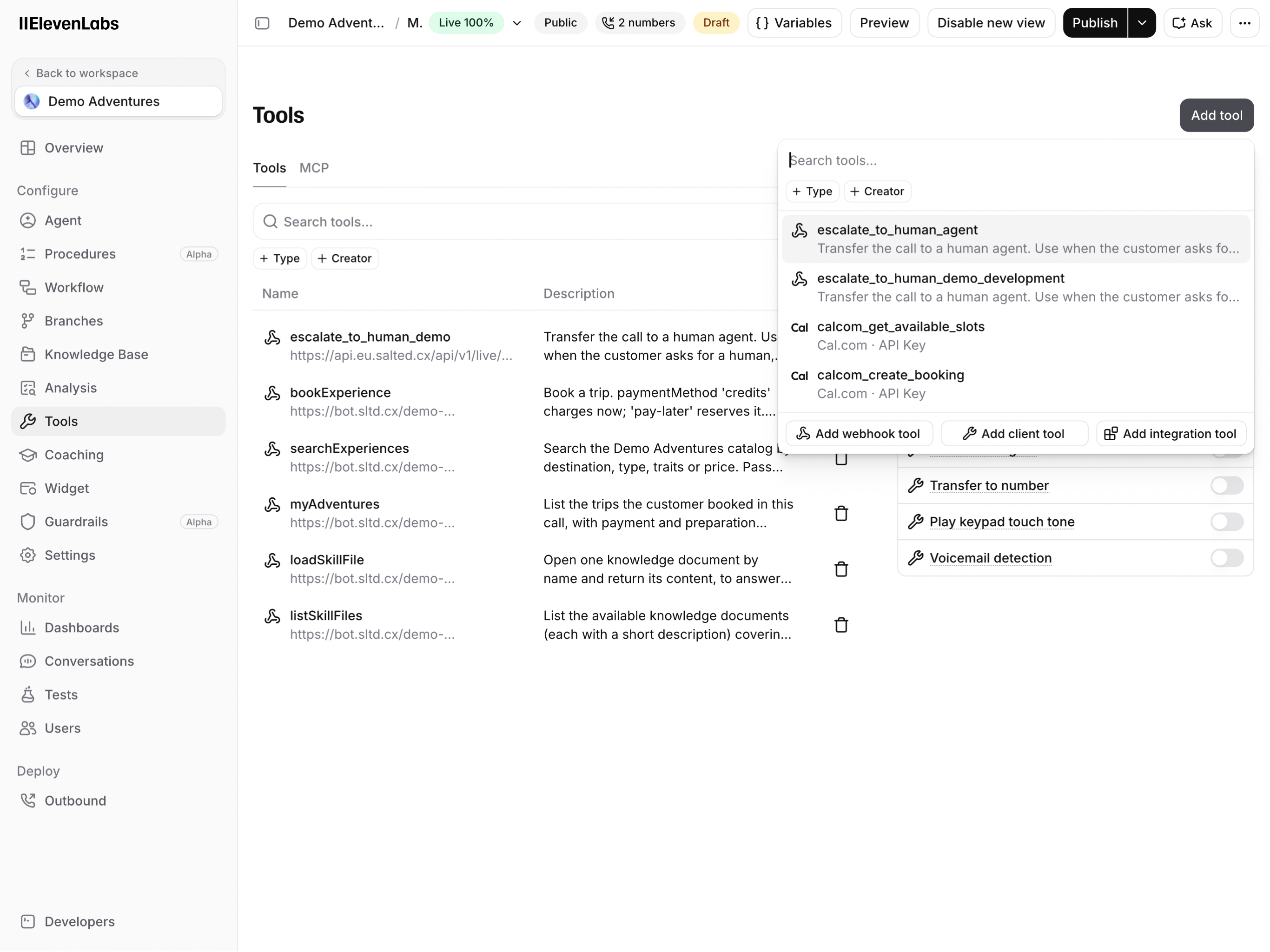
Congratulations. Your ElevenLabs setup should now be complete. Try calling your phone number to check if everything works as expected.