Live Conversations is where you talk to customers. One screen holds every conversation you are handling, the full history with each customer, and the tools to reply quickly.
Conversation Sidebar
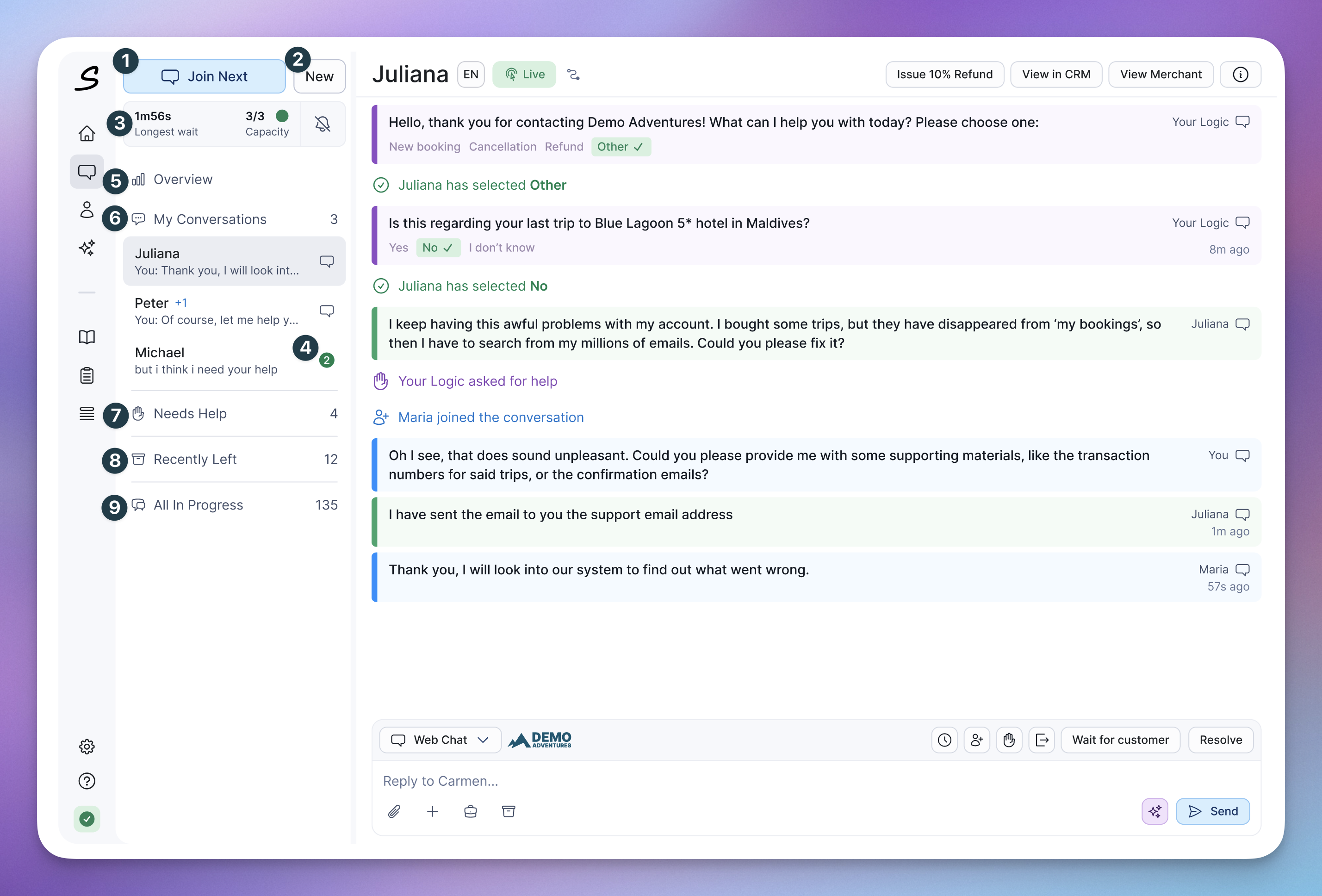
The sidebar lists the conversations available to you, grouped into sections. Each section header shows how many conversations it contains.
Join Next  at the top takes you straight into the conversation that has been waiting longest for an agent.
 New Conversation  sits beside it if you have permission to start outbound conversations.
Below the buttons, a capacity panel  shows how many conversations you are handling against
your target, and how long the longest-waiting customer has been waiting. Use it to decide whether you have room to take on more.
shows how many conversations you are handling against
your target, and how long the longest-waiting customer has been waiting. Use it to decide whether you have room to take on more.
Every conversation row shows its channel on the right. Voice calls are marked distinctly. A row also shows the number of participants, so you can tell whether a colleague or a bot is already involved.
When a conversation receives messages you have not seen, its row shows a badge  with the number of new messages. The badge is color-coded by who sent them — customer, fellow agent, external agent, or bot. If Live Conversations is open in a background browser tab, the tab itself indicates when a conversation needs your attention, so you can work in other applications without checking back.
Sections
Overview  shows how loaded your colleagues are, if user hold a correct permission. Supervisors and team leaders use it to assign conversations and to see where help is needed.
My Conversations  holds every conversation you are currently engaged in. These are what you should focus on. To leave all of my active conversations, hover over the My Conversations headline, then press the
 Leave icon button and choose a reason to leave all of them. Use this at the end of a shift or before a break, so customers are handed on rather than left waiting.
Help Needed  holds conversations waiting for an agent. Automation flags a conversation as needing help when it cannot answer, when it is unavailable or returns an invalid response, or when the customer asks directly to speak to a person. A colleague can also ask for help on a conversation they are already handling.
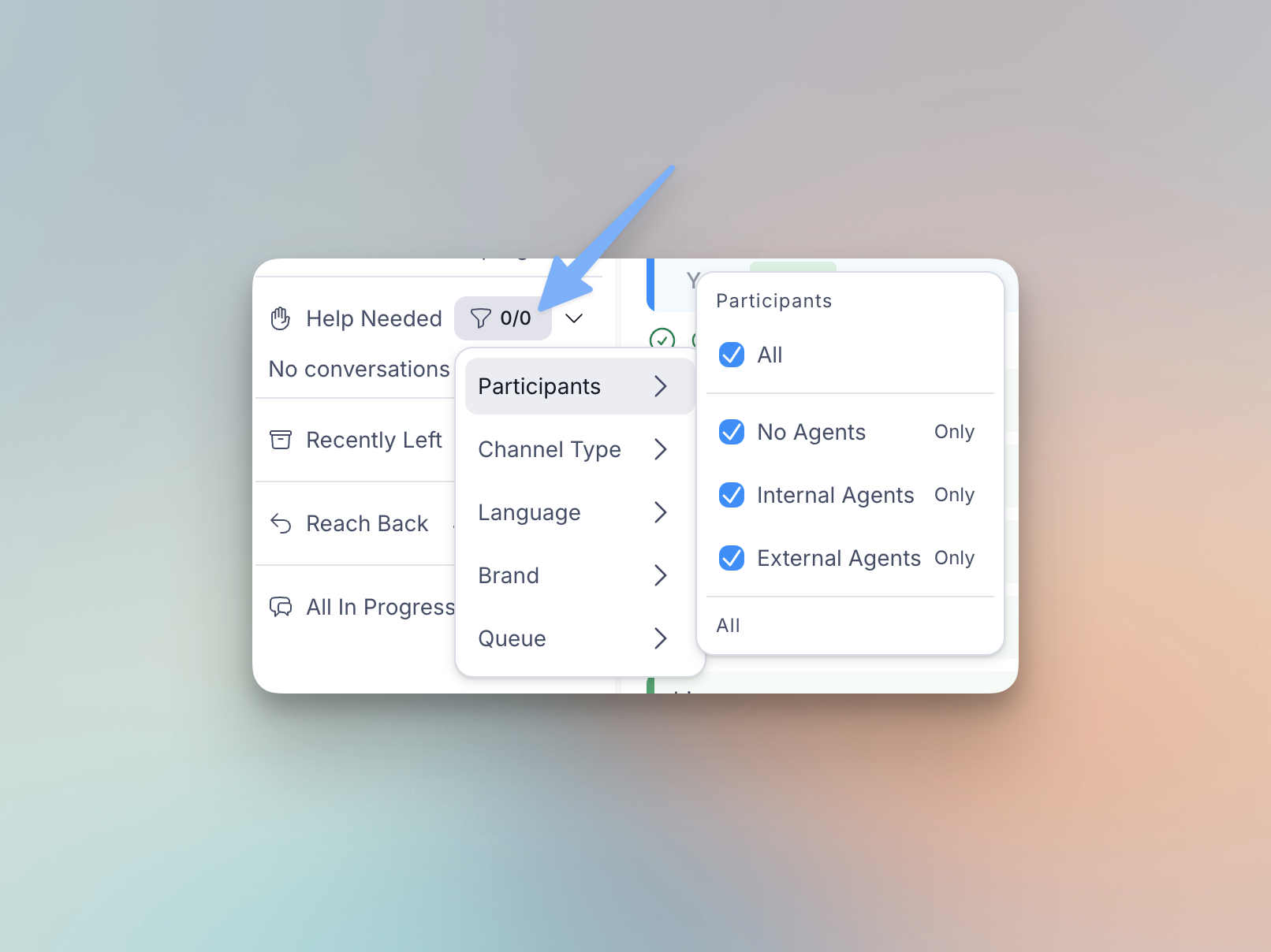
Conversations in Help Needed are ordered by urgency, highest first, with conversations that have no urgency set at the bottom. Within the same urgency, the longest-waiting customer comes first. You can filter the section by channel — to focus on chats or emails separately — and by the participants currently in the conversation, to separate escalations from a bot from escalations from a colleague.
Recently Left  holds conversations you recently participated in but no longer do. Use it to return to a conversation you left by accident or too early.
All In Progress  appears if you have a permission and it shows every conversation currently running, including AI-led conversations with no human agent engaged. It can also be filtered by participant.
Joining a conversation
Before you join, Live Conversations only show customer name and channel rather than its contents. This is deliberate: it stops agents from picking the easy conversations and leaving the hard ones. Click Join Next or the Join button that appears after you hover on a conversation to join the conversation.
Joining creates an engagement, lets you communicate with the customer, and makes your participation visible in reporting.
Two exceptions:
- Users with supervise permission can open an in-progress conversation and read it without joining, so they can monitor the operation. Viewing does not create an engagement.
- If you are already at your maximum number of concurrent conversations, joining is paused until you resolve or leave one.
A supervisor or team leader can also assign a conversation to you directly from Overview.
Reading the conversation
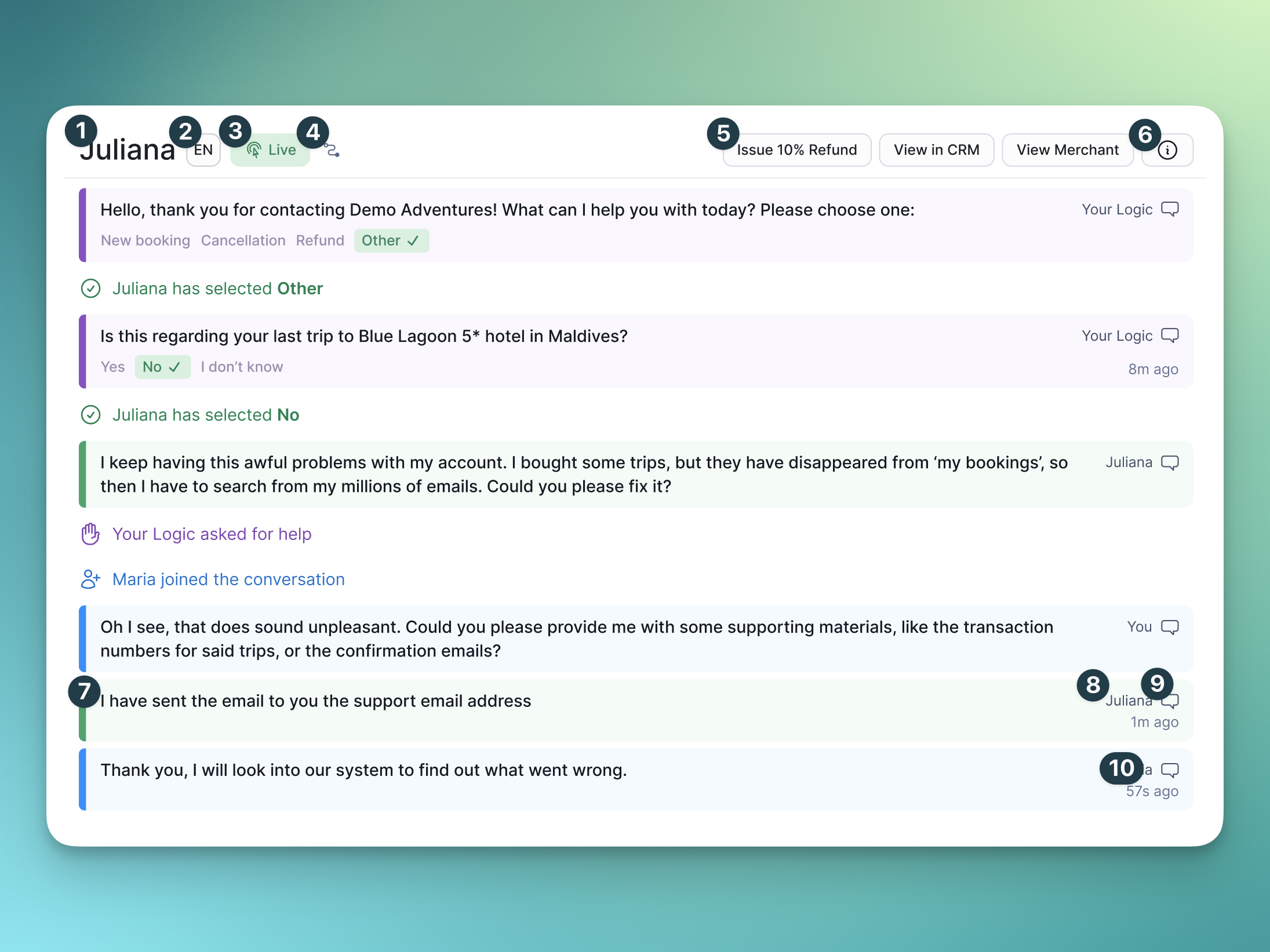
Header
The header shows the customer's name from the Salted CX customer profile if it is known.
Language selector shows the conversation's current language. The conversation language drives translation — the customer's messages are translated for you and your replies are translated for them, along with any questions and answers you send.
Status badge beside the language shows whether the customer is currently active in Universal Chat. In the example it reads ‘Live’ with a cursor icon, meaning they have the chat open in front of them right now. If it reads ‘Away’, customer is not engaged with the chat currently or has it minimized on the page. ‘Left’ means the have closed the page or disconnected. This matters for pacing — a live customer is sitting with the conversation open and will notice every second of delay. Click the badge to see the page on your site the customer last interacted with.
Journey icon opens the customer journey for this customer. It shows every prior conversation across every channel and platform, including conversations that happened before you used Live Conversations. Open it when the customer refers to something that happened earlier, when you suspect a repeat contact, or when the current conversation makes no sense without context. You can also scroll up in the transcript itself for recent history — the journey is for going further back and across channels.
Action buttons on the right trigger actions in your company's systems without you leaving the
conversation. The set is specific to your company. A button can for example run an action in the background, open a page in a new browser tab, copy text to your clipboard. Hover over one to see a description of what it does, if the person who configured it provided one. If there are more buttons than fit across the header, the extras collapse into a menu.
Buttons are configured in Settings, see Live Conversations Toolbar.
Info button at the far right opens the information available for this conversation. This is where information about the conversation lives that you and your colleagues can read and interact with. Unlike notes, which sit in the transcript and scroll away, information stays available from the header. Use it for what the next person needs to know at a glance: the state of a case, a reference number, what has already been tried or access and interact with any page that your company added there.
Transcript
Scroll up to read further back. You can see previous conversations with this customer, including ones that happened on a different channel. Live conversation messages and other content is shown the same way as in the customer journey.
Each participant has a color:
| Participant | Colour |
|---|---|
| Customer | Green |
| Human agents in your company | Blue |
| Bot agents and other automation | Purple |
| External agents invited into this conversation | Yellow |
| System messages and unknown participants | Grey |
Message content sits on the left of each turn; Author of messages is shown on the right and timestamps and turn actions sit next to it, visible after hovering on the channel icon.
Timers  on the last message show how long it has been since its been sent. Use them to judge whether the customer is waiting on you or you are waiting on them.
Files and images the customer sends appear as attachments on the message they came with, not as separate turns.
Sharing a specific moment
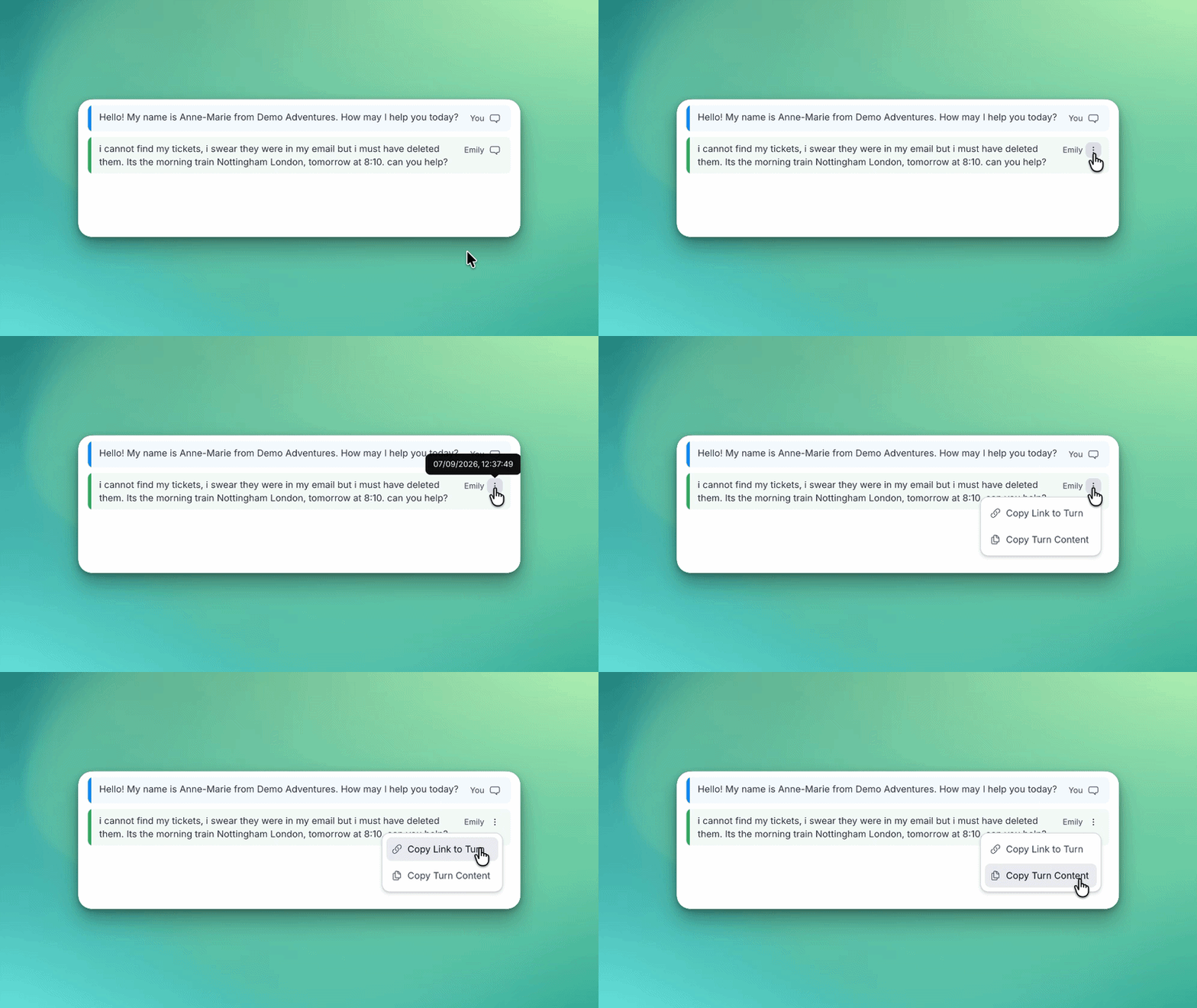
Hover over any turn and open its More menu. The first action copies a link that opens the conversation scrolled to that exact turn and highlights it — the fastest way to point a colleague at the moment that matters when you escalate. The second copies the turn's text, so you can reuse it in notes or another system. Masked personal information is copied as readable labels rather than raw tokens, so nothing sensitive leaks.
Typing indicators
You can see when the customer or a fellow agent is typing, which gives you a moment to wait rather than talking over someone. Customers cannot see when you are typing.
Composing a Message
Everything you do in a conversation happens in the composer at the bottom of the screen. It holds three things: where the message is going, what you are writing, and what you want to happen to the conversation.
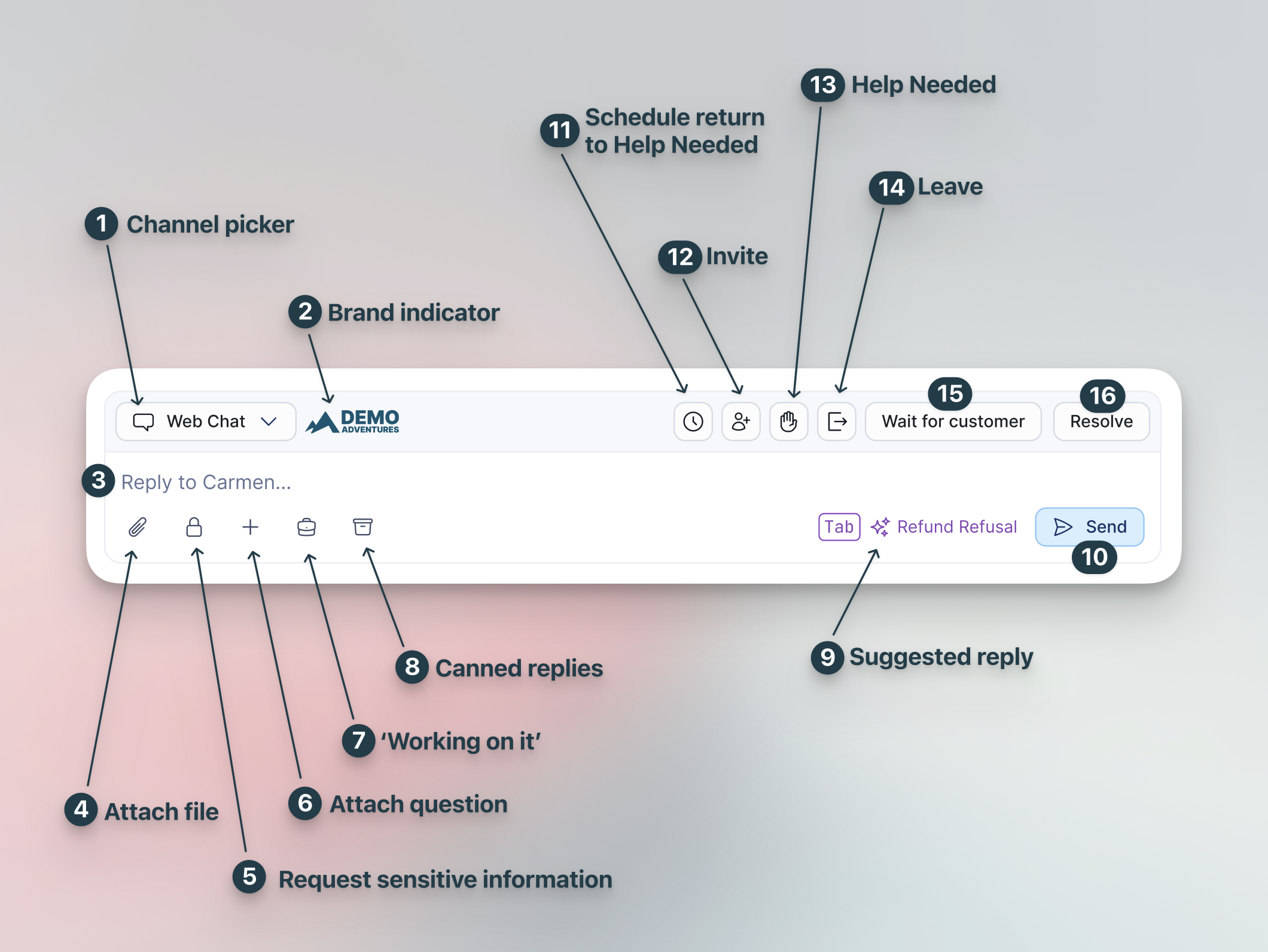
Where the message is going
Channel picker shows the channel your reply will go out on. Open it to switch channel. If the customer started on chat but has an email address on file, you can follow up by email from the same conversation; you do not need to move to another tool or start again somewhere else.
The picker is also where you add a contact. If the customer gives you an email address or phone number during the conversation, add or link it here — Salted CX looks it up, validates it, and attaches it to the customer. Adding contacts requires permission, so the option may not be available to you.
From the channel dropdown, you might also add a note that the customer never sees. Select Internal Note for your colleagues and External Note for people outside of your organization you might want to share your conversations with. Use them to pass context between agents, or to record what you tried. Notes flow with the conversation in the transcript.
Brand indicator is the logo or name beside the picker showing which of your company's
brands the customer is talking to. Accounts running several brands see a different indicator
per conversation, and the customer sees the matching branding in Universal Chat. Check it
before you write: tone, signature, and sometimes policy differ by brand.
Writing the message
Reply field : type your message here. The field addresses the customer by name so you
can see at a glance who you are writing to — useful when you have several conversations
open.
Drafts are kept per conversation, so you can switch away and come back without losing what you had written.
If your message contains a variable placeholder that has not been filled in, sending is blocked until you complete it. This prevents a customer receiving a message with a raw placeholder in it.
Improve reply — write the gist of what you want to say, then type two dots .. at the end. Salted CX uses the conversation context to expand it into a fuller reply in your organization's communication style.
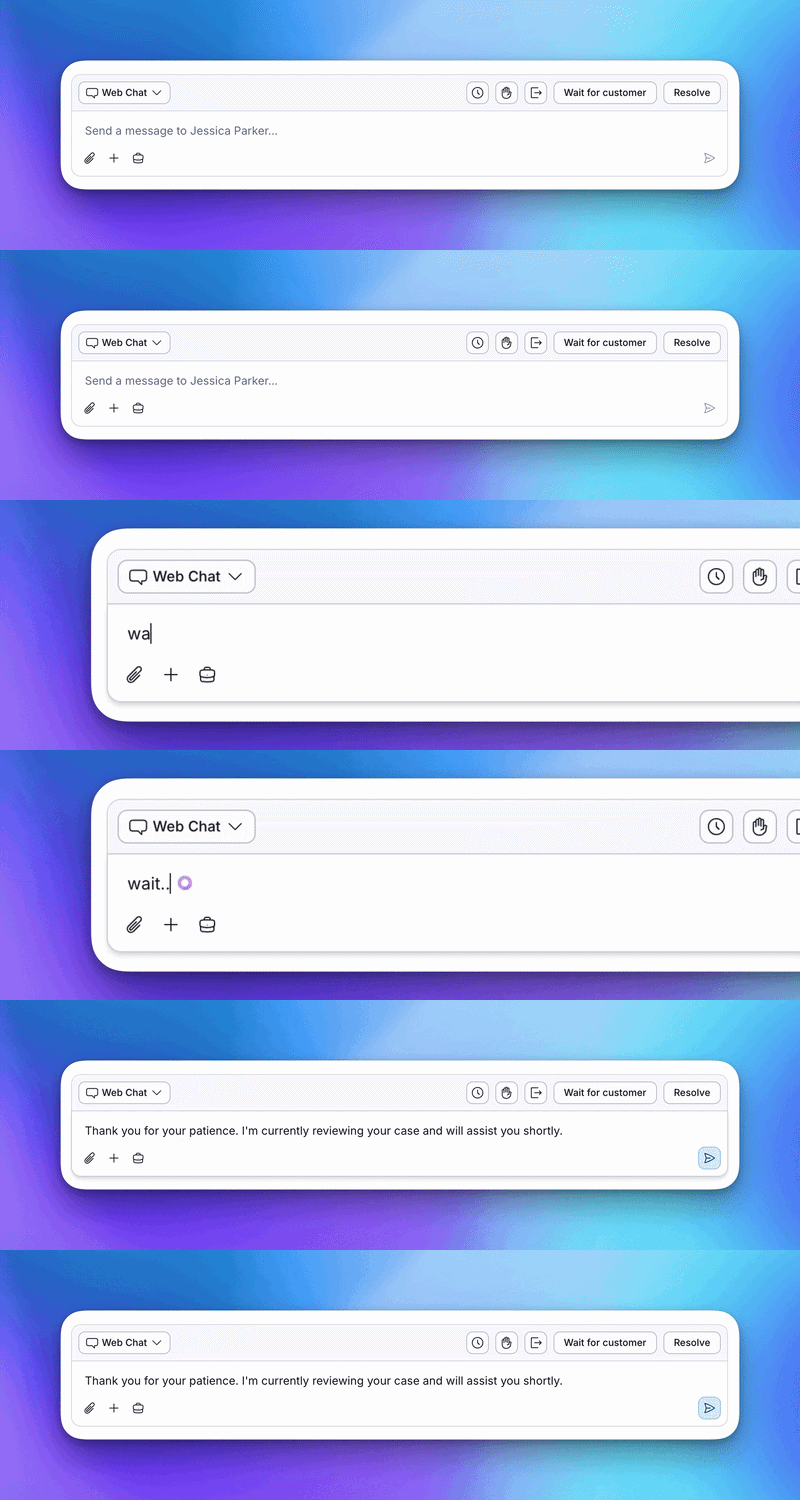
Typing wait.. in a conversation might produce something like "Thank you for your patience. I'm currently reviewing your case and will assist you shortly." You always see the result before it goes anywhere and can edit it.
Attach file , with the paperclip icon, lets you attach a file or image to your message. Attachments travel with the message rather than as a separate turn, so the customer — and your
automation — see the text and the files together. On email, attachments render inline at
their position in the body: images as images, other files as a download chip.
Request sensitive information when you need a card number or a one-time code, don't ask the customer to type it into the chat — it would stay in the transcript. Request it as a secure field instead.
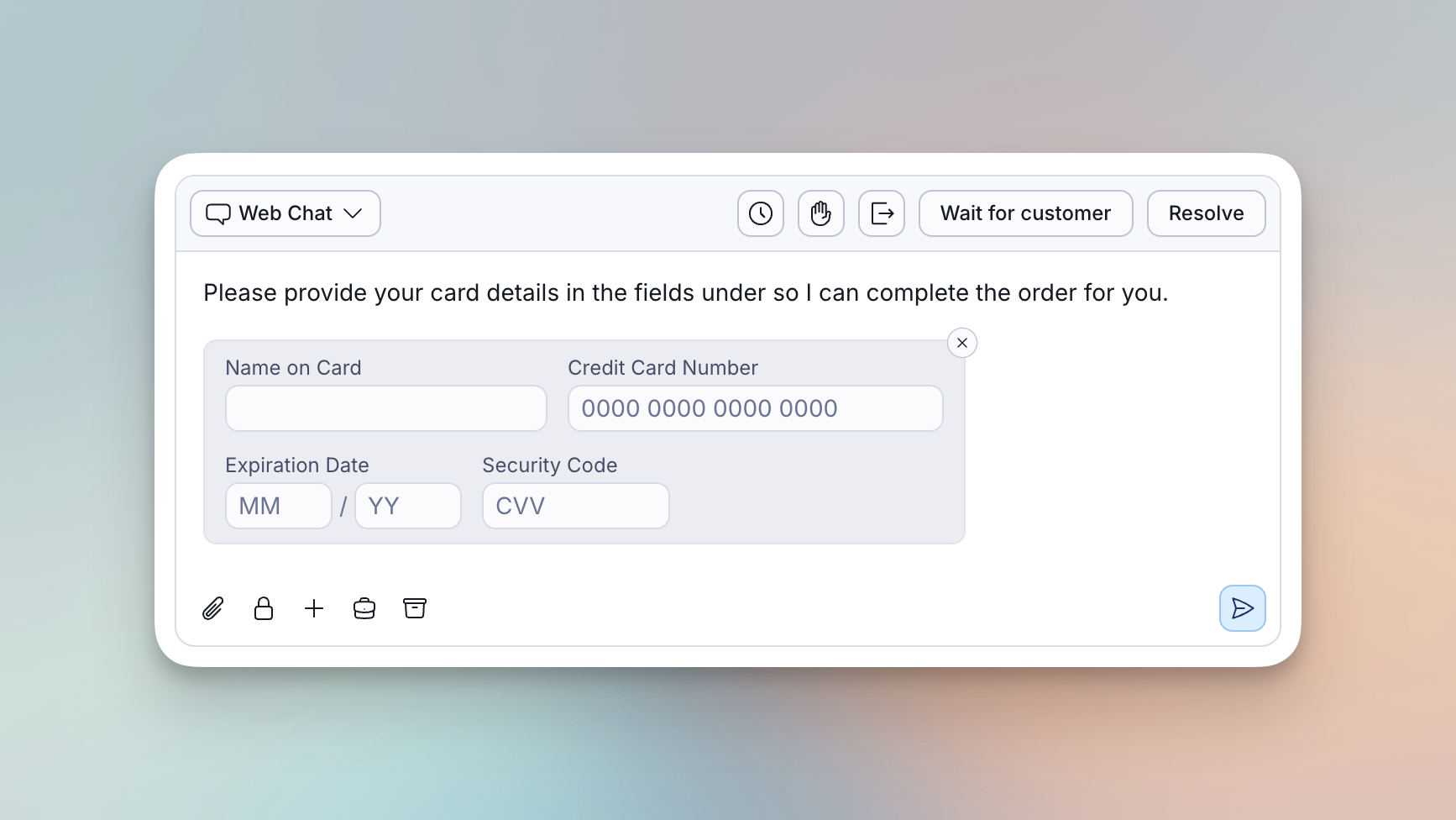
From the composer, choose the secure request and pick what you need: a credit card or a secret text. It goes to the customer as its own turn, and they fill it in through a form inside the chat widget rather than typing it as a message. Reveal when you need it and copy it where it belongs.
The value is held for one hour and never written into the conversation record — so make the request when you're ready to use it. Every reveal is logged, so the record shows who saw what.
These fields are Universal Chat only. On a voice call, pause the recording while the customer reads the information aloud instead.
Attach question with the plus icon — add a predefined question with a set of answers for
the customer to choose from.
- Click the plus button.
- Search for the question.
- Select it.
- Preview it, including its answers.
- Send.
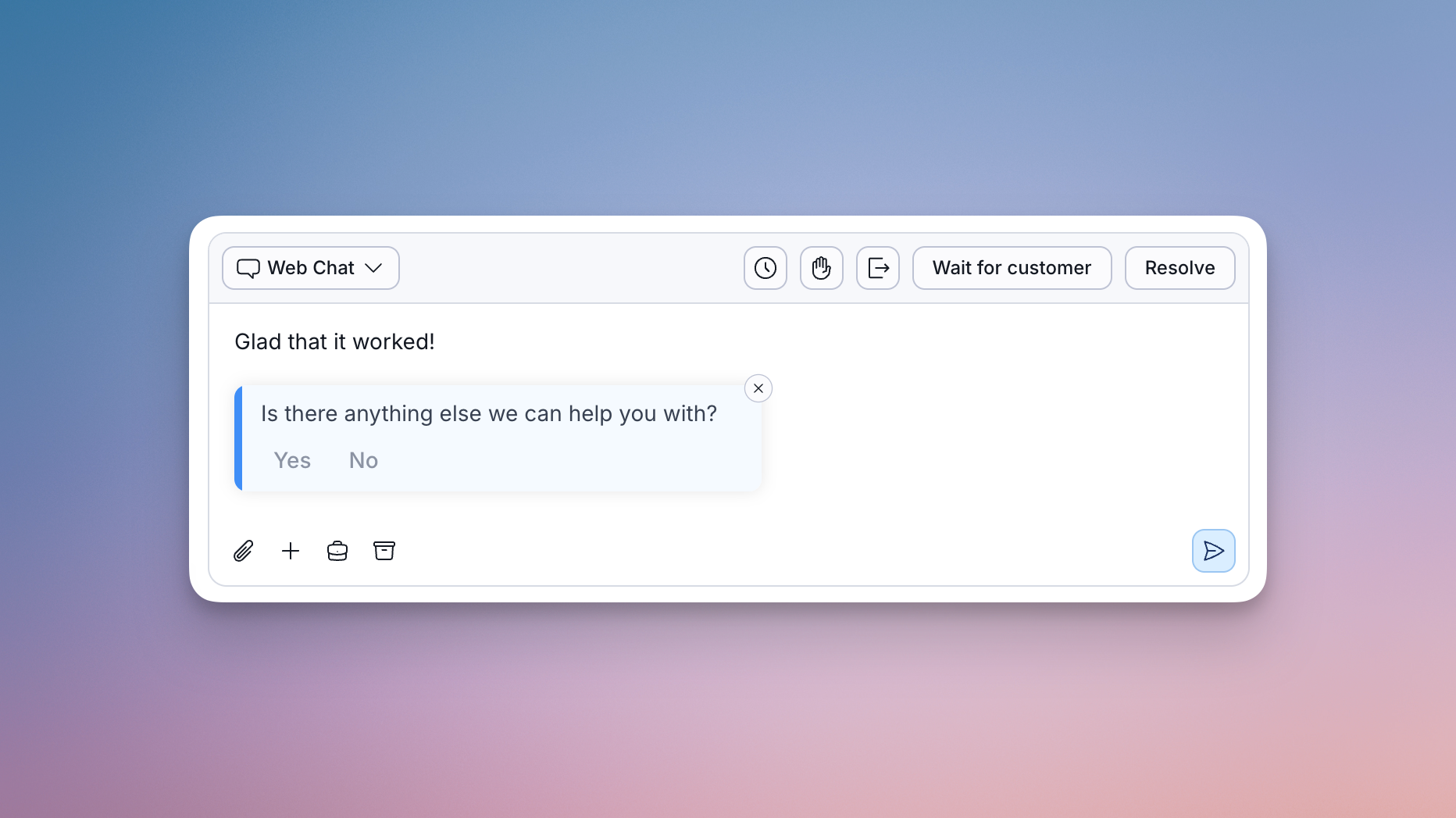
The composer only offers questions that fit the current conversation — the right channel, language, brand, and queue — so you are not scrolling past ones you cannot use.
Questions are sent as written; you cannot edit them before sending. Where translation is enabled, both the question and its answers are translated automatically. On phone conversations you can send questions over SMS, and you can send them by email, where the customer answers on a dedicated page.
Automation can also generate questions during a conversation, built for the moment rather than defined in advance.
‘Working on it’ sends a short message confirming that someone is attending to the
issue. It goes immediately, with no compose step. Your account holds several phrasings and
one is picked at random, so repeated use does not read as mechanical.
Canned replies opens your account's prepared replies. Search by shortcut or by
content. Replies you have marked as favorites appear first, alongside the ones you have used
recently. As with questions, you only see the replies available for this conversation's
channel, language, brand, and queue.
Suggested reply is where Salted CX can automatically propose a reply for the situation you are in, it appears to the right of the composer with a name. Press Tab to accept it into the reply field, then edit before sending. Nothing is sent until you send it.
Send will send the message on the channel shown in the picker.
On email conversations
Email replies gain a few controls the chat composer does not have:
- A CC/BCC toggle that reveals recipient fields, each taking multiple addresses.
- Your brand's email signature, which appears in the reply and can be edited before sending. It is combined with your message on send and is included in email question replies too.
Auto greeting
When you join a conversation you may be offered a prepared message telling the customer you have joined. Review it before sending, or choose not to use it. Your account can hold several phrasings, and they can include details from the conversation such as your name or the customer's.
Conversation actions
The row of controls above the reply field decides what happens to the conversation. They sit in the composer because the decision usually comes with the message — you answer, then say whether you are done, waiting, or handing on.
Schedule return to Help Needed  parks the conversation and schedules it to come back to the Needs Help queue at a time you choose, up to ten days out. You can aim it at a specific agent and attach an internal note. Use it when nothing can happen until a date — a delivery window, a refund clearing, a callback the customer asked for.
Invite  a specific person into the conversation. The invitation appears in that agent's sidebar with Join and Decline. If they do not accept in time, it moves to Help Needed where anyone can pick it up. Use it when you know who can help; use Help Needed when you do not.
Help Needed  puts the conversation into your colleagues' Help Needed queue. The customer does not see this. You stay in the conversation and can keep replying, and any number of colleagues can join.
Leave  leaves the conversation without claiming the request was resolved. Choose the reason from the dropdown honestly — it appears in reporting.
Wait for customer  marks the conversation as waiting on the customer rather than on you. It becomes less prominent, and the waiting time is reported separately — your account can exclude it from engagement and handling time. Use it when you have answered and the next move is theirs.
Resolve  states that you have resolved the request. It does not close the conversation: Salted CX may ask the customer to confirm and collect their feedback. The conversation moves to Recently Left, and returns to Help Needed if the customer writes back.